 Verso Suite
 Verso Doc Compare
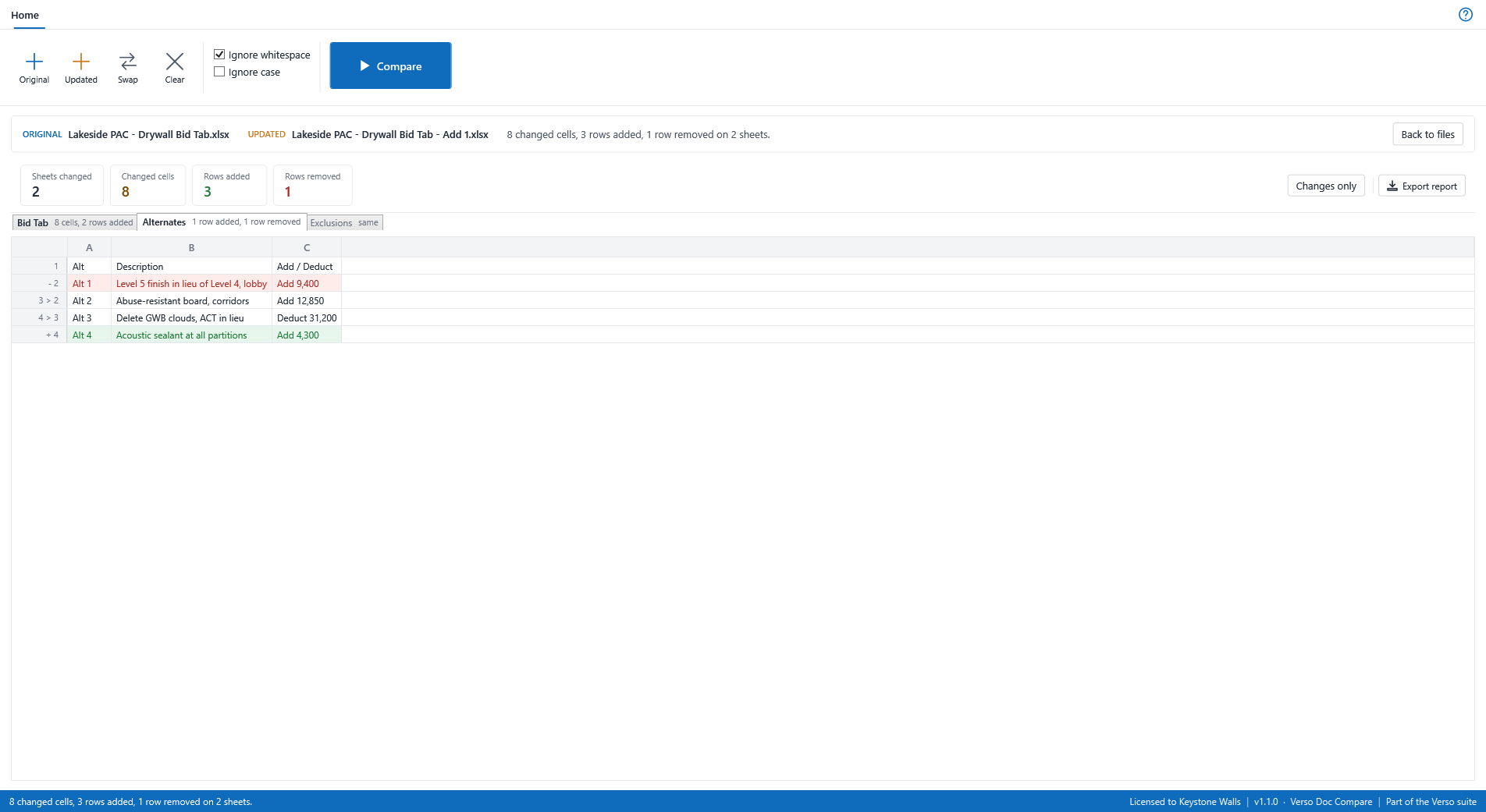
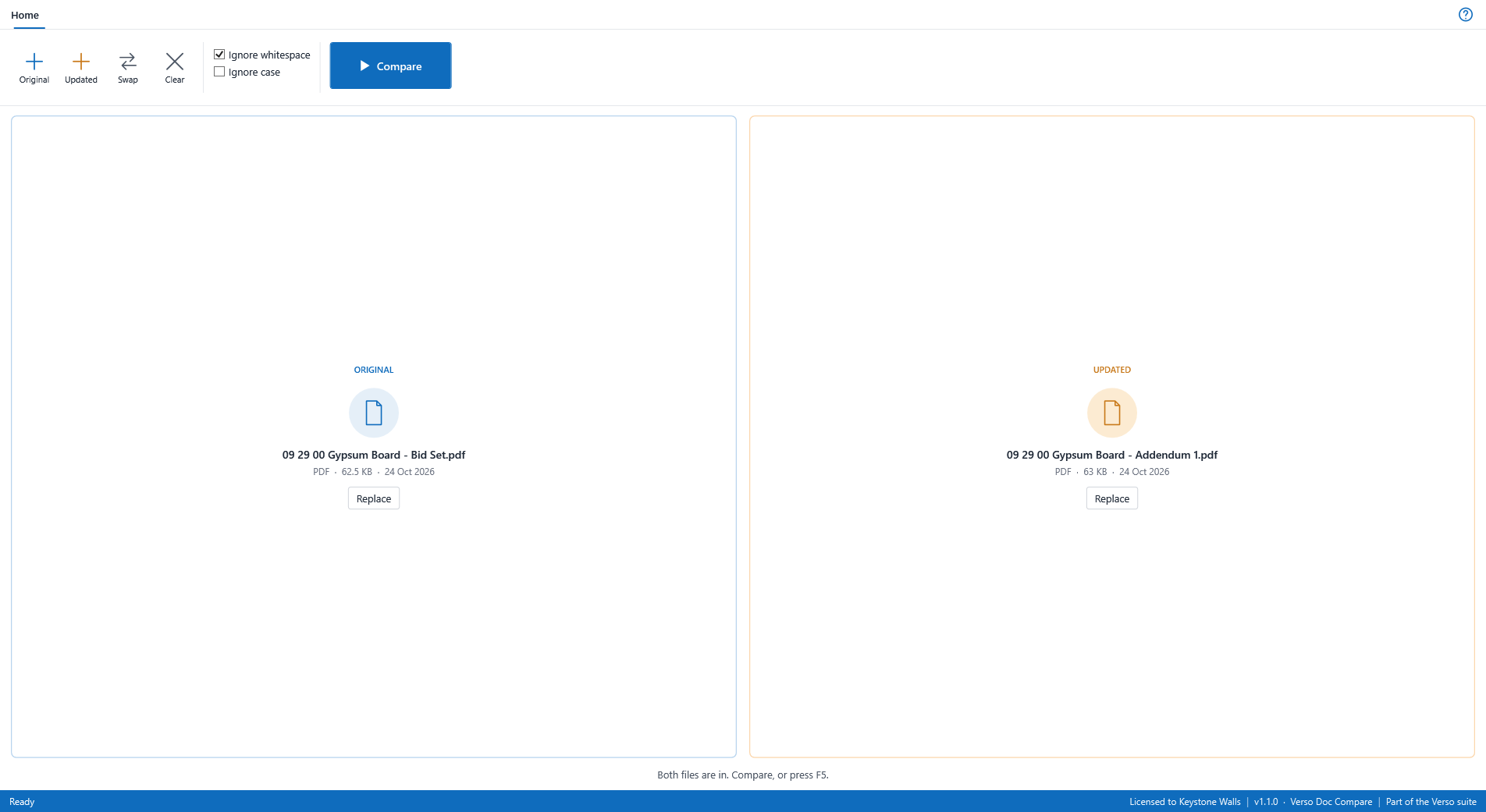
Two PDFs or two spreadsheets side by side, every difference foundVerso Doc Compare in two minutes: the spec section as issued and as revised by the addendum, line by line with the words that differ marked; the bid tab before and after, row by row with the changed cells amber; Changes only, the sheet tabs, the report.
WHAT IT DOES
- Two PDFs compare line by line, with the page in the gutter: green for what the revision added, red for what it took out, and inside a changed line the words that differ marked.
- Two spreadsheets compare row by row, matched by content: a line added in the middle of a bid tab is one added row, not every row below it changed; a price that moved is one amber cell with the old value a hover away.
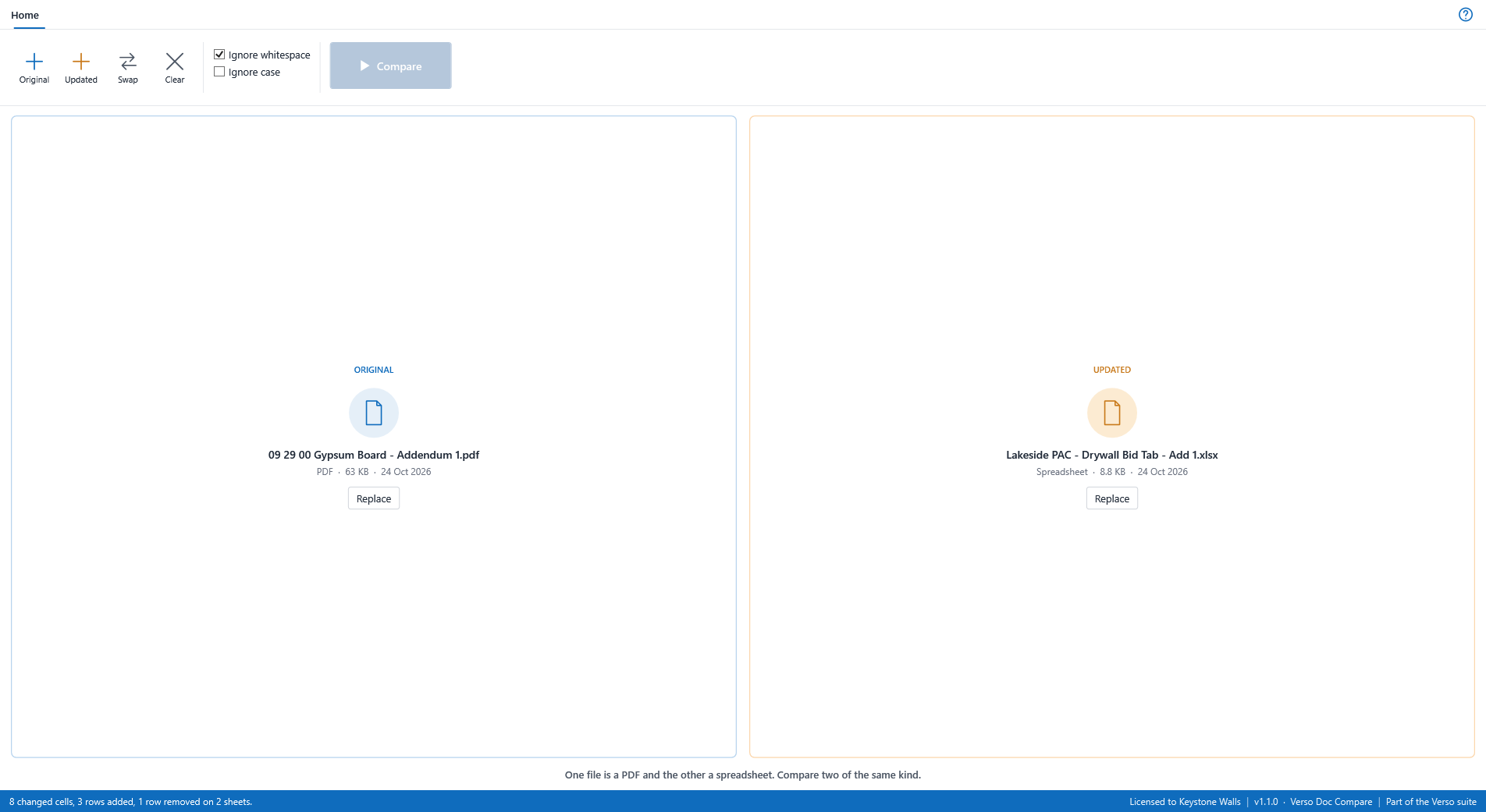
- The file type decides the comparison. Drop two files anywhere in the window, the original first; a PDF against a spreadsheet says so instead of comparing.
- Changes only hides what is the same; the arrows step through the changes; Find and Wrap for long lines; every sheet of a workbook on its own tab with its own count.
- Ignore whitespace and Ignore case, for the revision that only re-flowed the text. Swap turns the comparison round.
- Export report writes either comparison as a workbook: a summary sheet and the changed cells or lines, tinted the way the screen was.
- Reads PDF, .xlsx, .xlsm and .csv. A scanned PDF page says it has no text rather than comparing as blank.
WHO IT IS FOR
- The estimator with an addendum and a bid tab that has to move with it; the project manager with a revised spec or a changed schedule of values.
- Windows desktop, bought once. Works on its own, and beside Verso Plans and Verso PDF Editor.
SCREENSHOTS
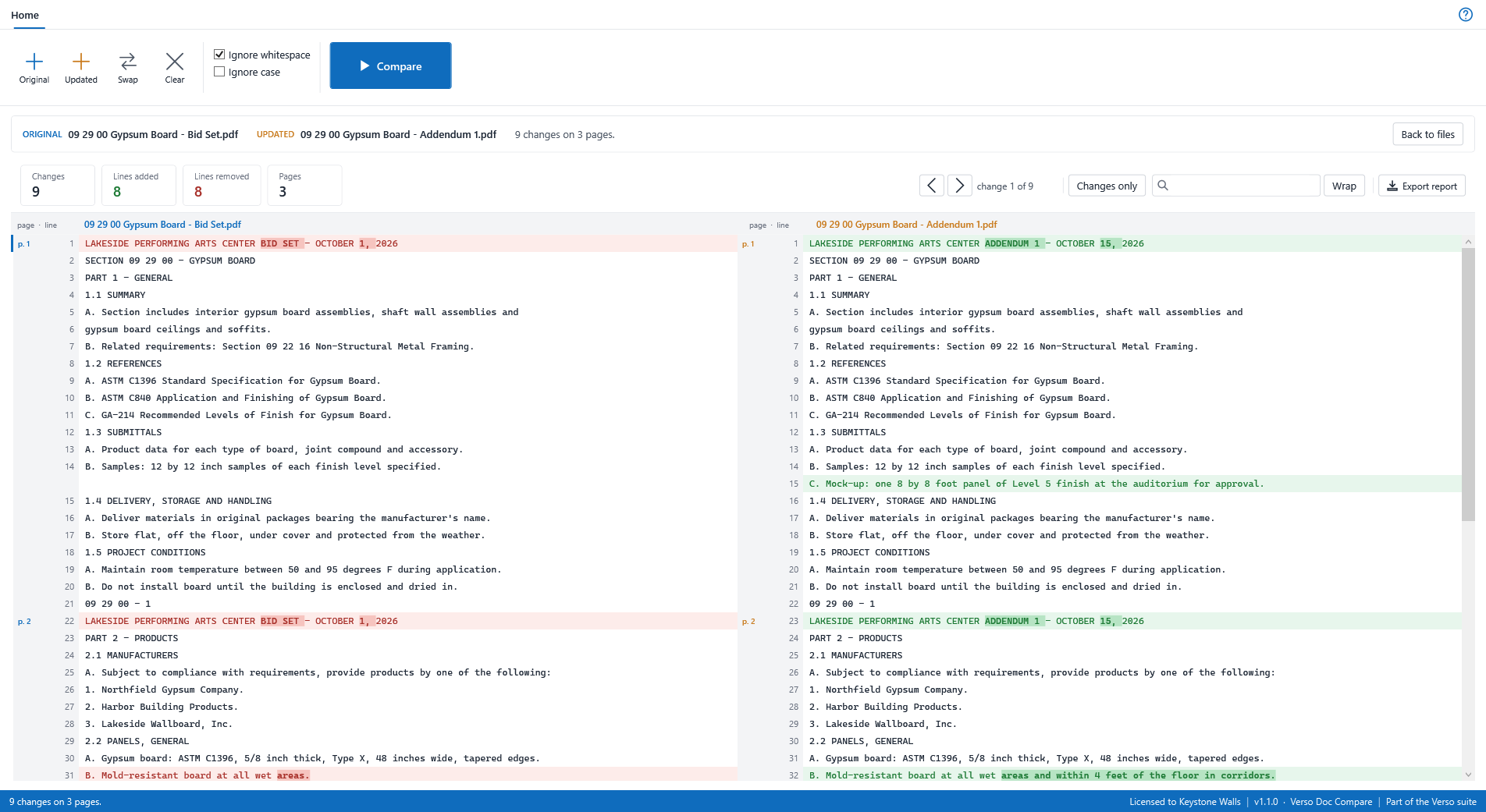
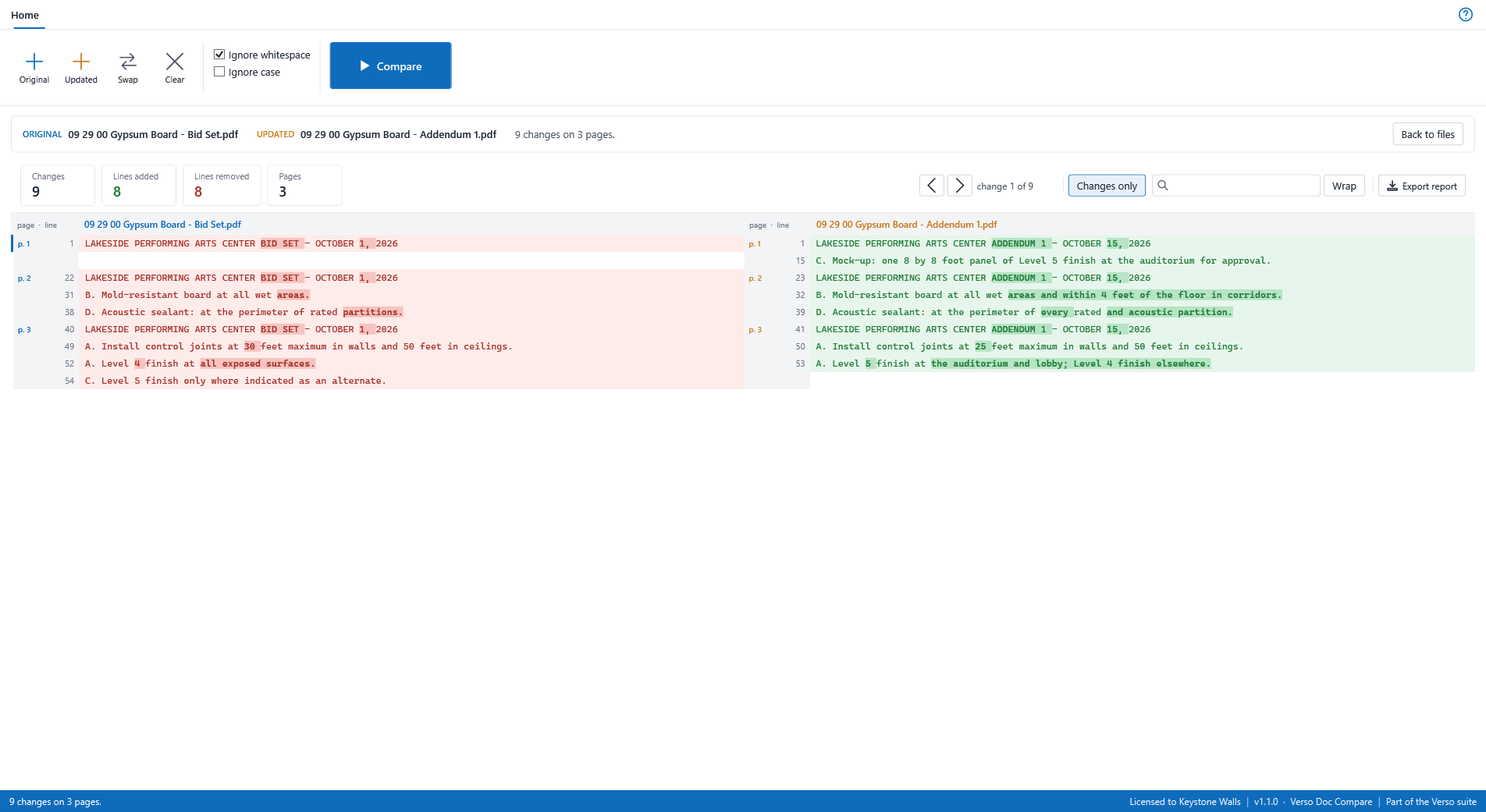
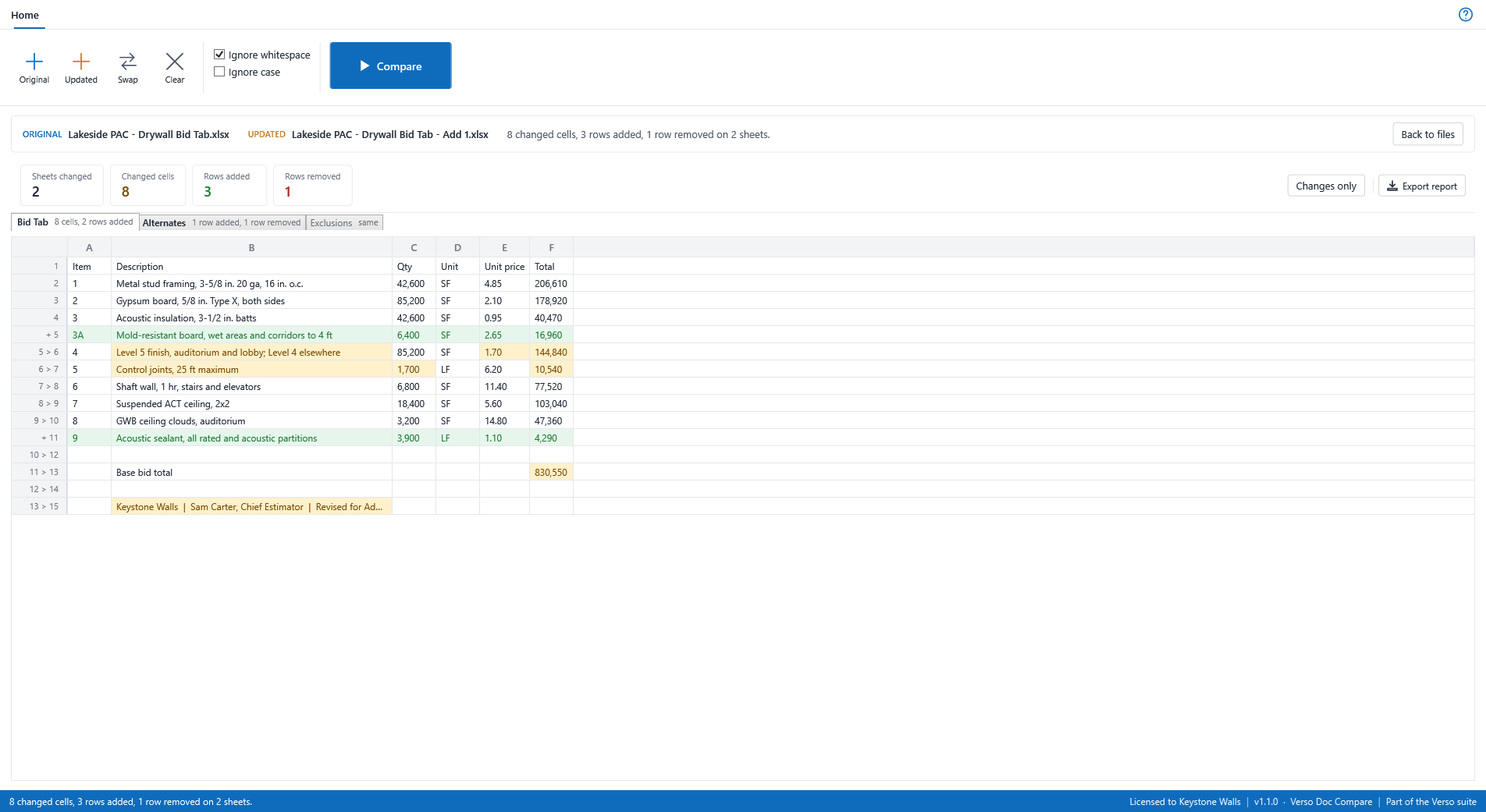
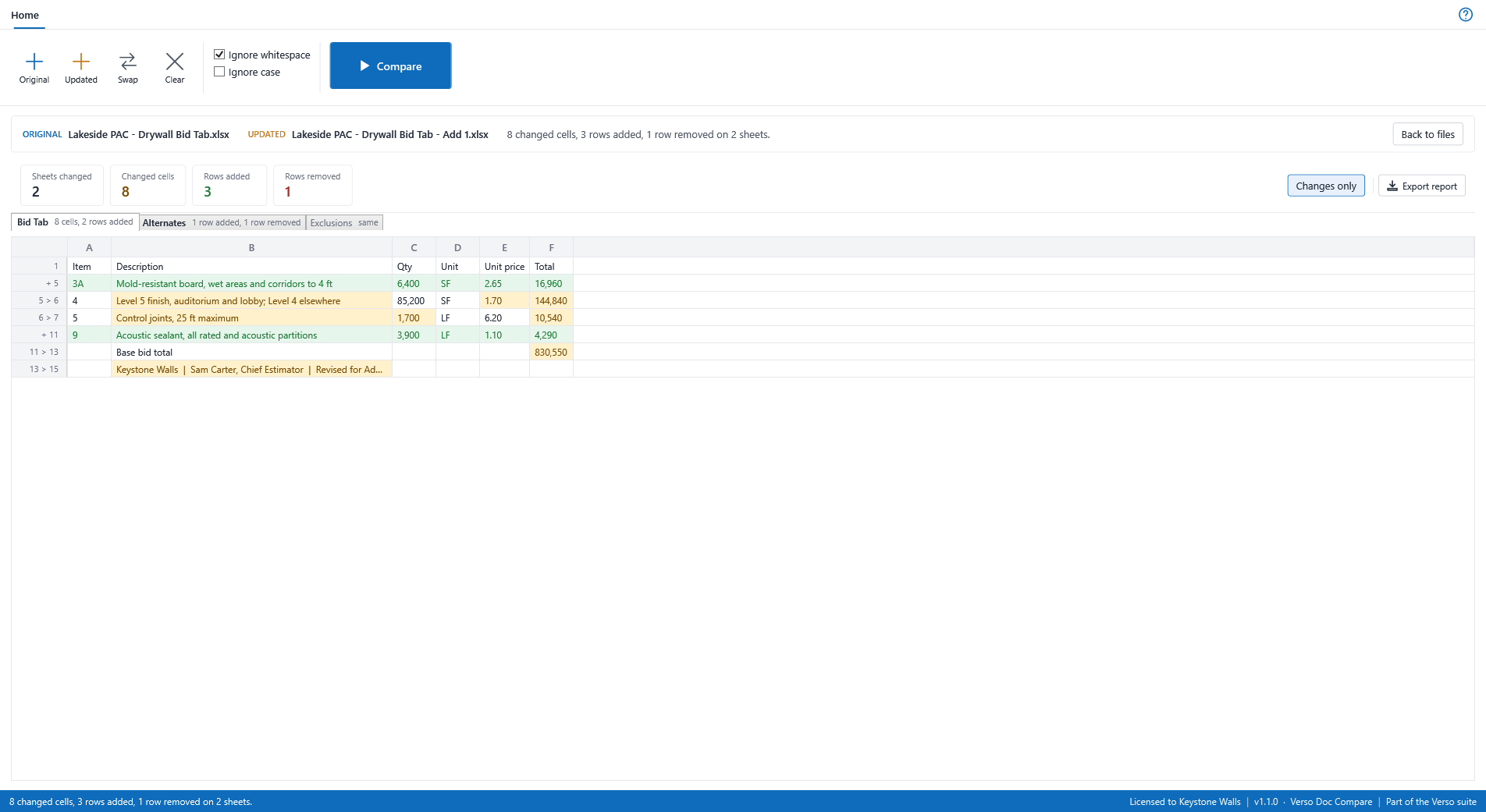
Every window above is the demo job, Lakeside Performing Arts Center, with invented people and contractors. The full description is on its page at deselt.com.
HELP
Comparing two files
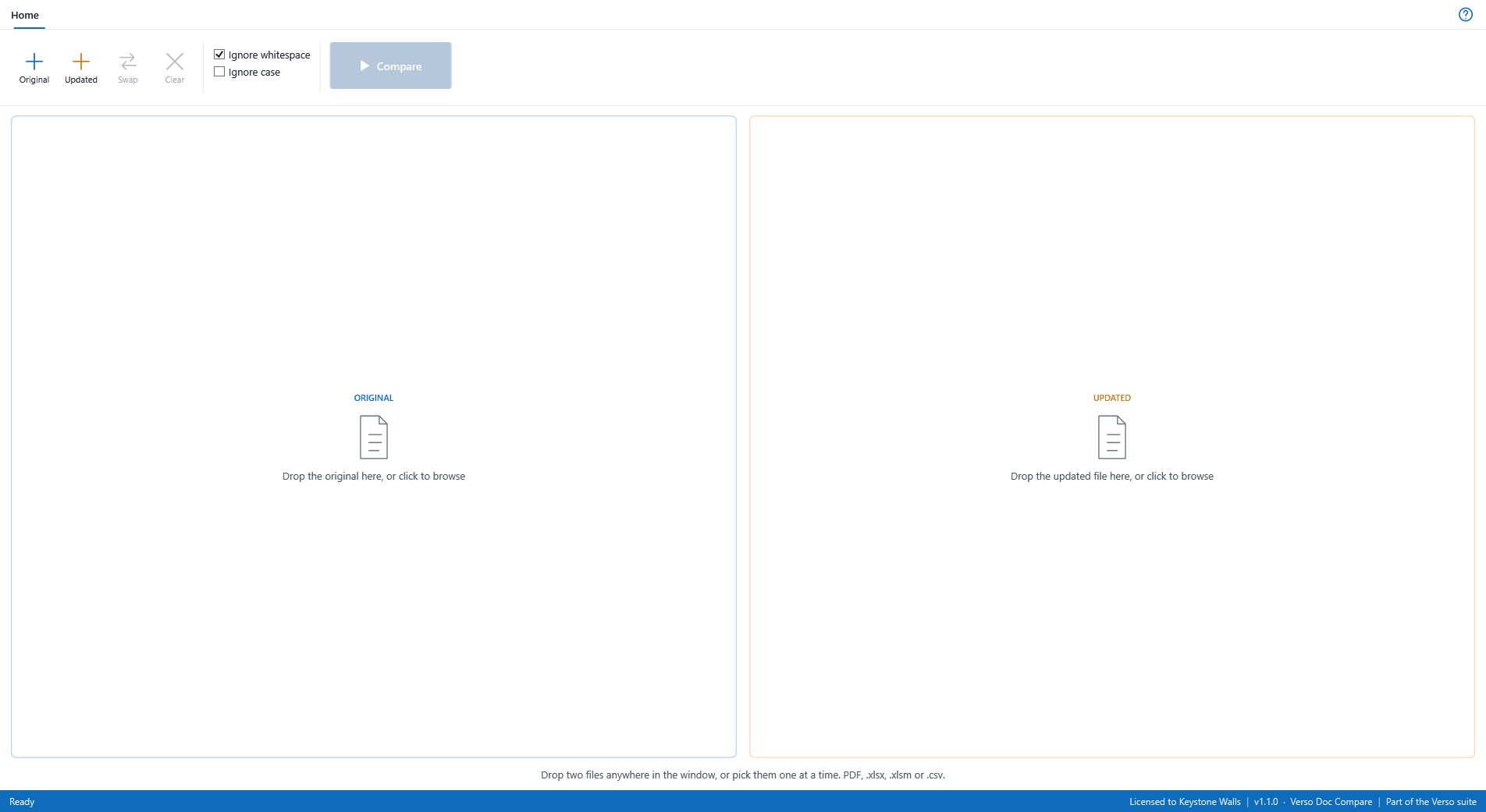
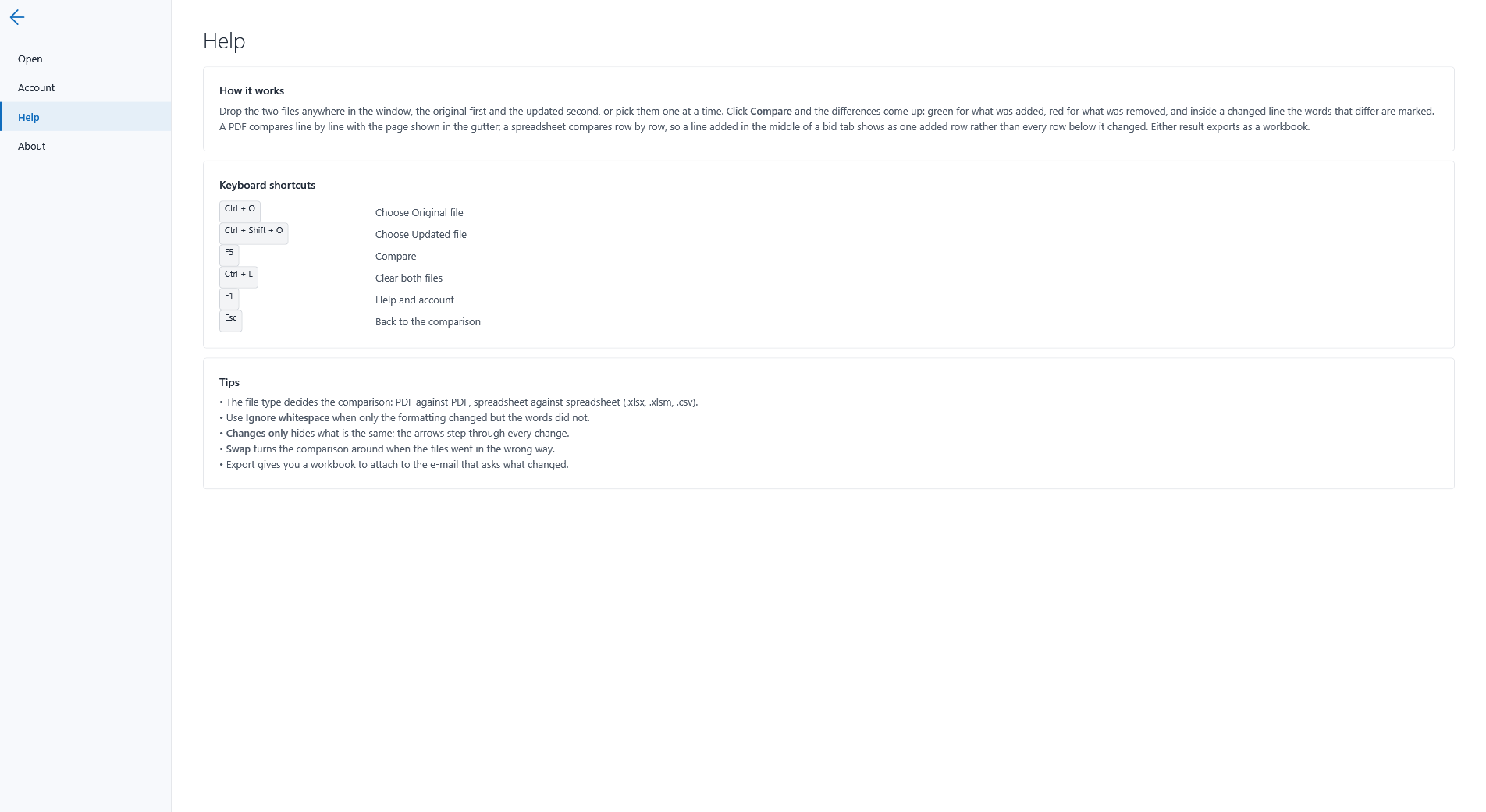
- Drop the two files anywhere in the window, the original first and the updated second, or click Original and Updated on the ribbon (Ctrl+O and Ctrl+Shift+O). The file type decides the comparison: PDF against PDF, spreadsheet against spreadsheet.
- Compare, or press F5. The result shows how many changes, and where.
- Changes only hides what is the same. The arrows step through the changes; Find looks for a word; Wrap folds long lines.
- Swap (Ctrl+Shift+S) turns the comparison round when the files went in the wrong way; Clear (Ctrl+L) starts over.
PDFs
Two PDFs compare by their text, line by line, and every line knows its page. A pair of lines that differ sit side by side with the words that changed marked inside them; a line only one file has sits beside a blank. A scanned page has no text and says so on its one line, so it is never mistaken for a blank page.
Spreadsheets
Two workbooks compare sheet by sheet, and each sheet row by row. Rows are matched by what is in them, so a line inserted in the middle of a bid tab shows as one added row and the rows below it stay matched; a changed row shows the cells that changed in amber, with the original value in the tooltip. Sheets only one file has are listed as new or removed. Reads .xlsx, .xlsm and .csv; the old .xls is not read.
Options
Ignore whitespace treats spacing and line breaks as no change, for the revision that only re-flowed the text. Ignore case treats capital letters as no change. Both are remembered between sessions.
The report
Export report writes the comparison as a workbook. For PDFs, every line with its page, its line numbers on each side and whether it was added or removed. For spreadsheets, a summary sheet with a line a sheet, then a sheet per changed sheet listing the changed cells, the rows added and the rows removed, tinted the way the screen was.
Requirements
Windows 10 or 11, 64-bit. A licence key from deselt.com. Verso Plans is not required.