 Verso Suite
 Verso PDF Toolkit
Unlock, resize, match, clean, compress, merge: the plan set ready before the takeoffVerso PDF Toolkit in two minutes: a bid folder dropped in, the locked sets unlocked, half-size prints, a revision matched to the original, the demolition layers cut out, the scanned record set compressed, the sets merged.
WHAT IT DOES
- Unlock: a copy of each file with no password and no restrictions. A file that merely refuses printing or copying unlocks as it is; a file that asks for a password to open takes that password. AES-256, the current standard, is read.
- Resize: every page redrawn at a standard sheet (ARCH D, ARCH E, ANSI, A-series, Letter, Tabloid), a percentage or custom inches, centred and proportional; a sheet stored rotated keeps its rotation.
- Match: every page sized like the same page of a reference PDF, so a revision overlays the original exactly in a compare.
- Remove layers: the layers of the loaded files listed as soon as they are in; a ticked layer is cut out of every page, not hidden, so no viewer can switch it back on. Annotations and metadata go with their own ticks.
- Compress: images re-encoded at three levels, repeated images encoded once, fax and mask images left alone, and a file that would come out bigger kept as it was.
- Merge and split: the loaded sets into one PDF in list order; every page as its own file; or one PDF per page range.
- Batch by nature: drop a folder, run a tool over everything in it, and every row says what happened. The originals are never touched.
WHO IT IS FOR
- The estimator with a bid folder straight from the general contractor: locked sets, odd sizes, layers from the architect's model, scans too big to e-mail.
- Windows desktop, bought once. Works on its own, and beside Verso Plans and Verso PDF Editor.
SCREENSHOTS
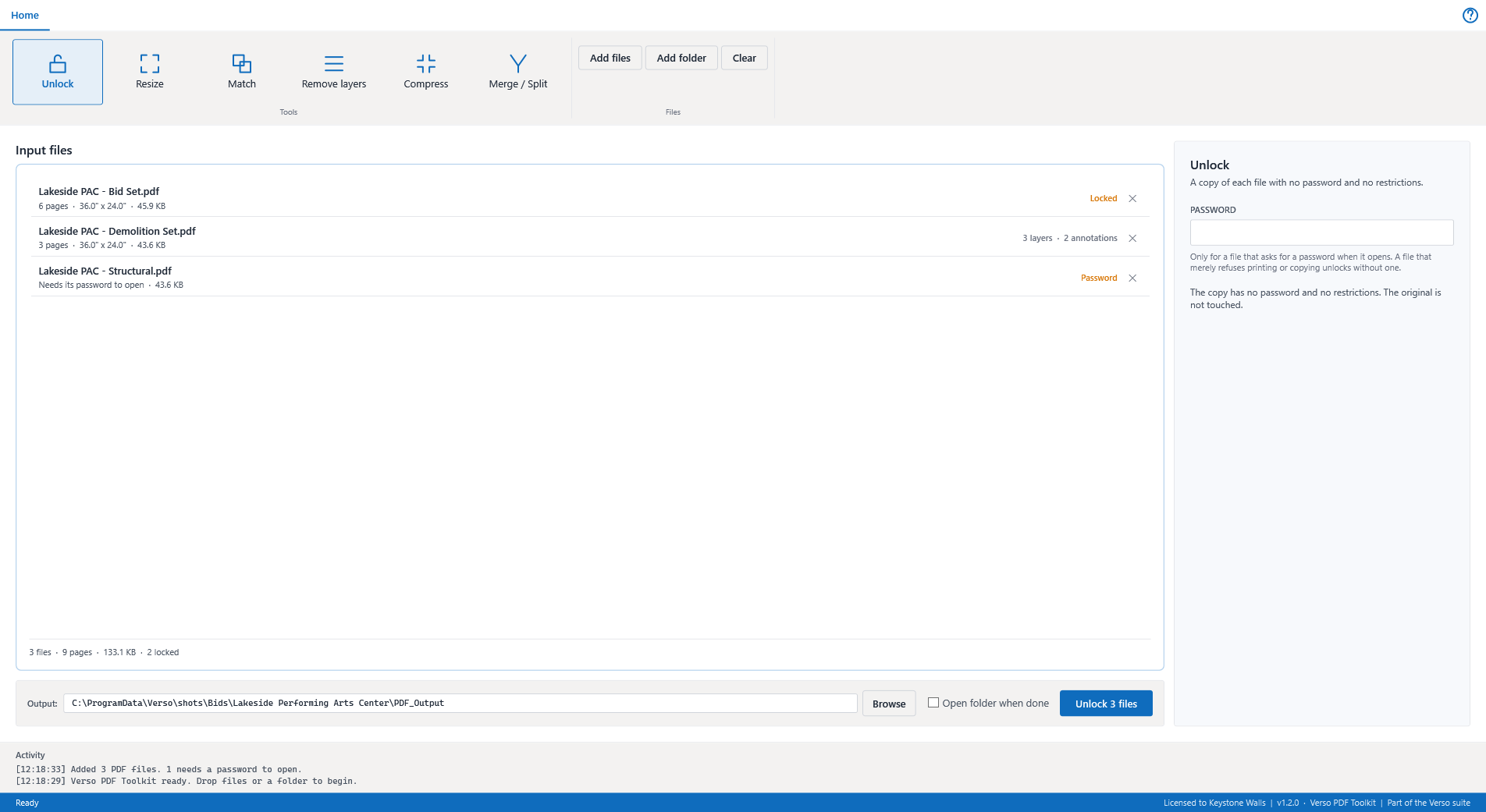
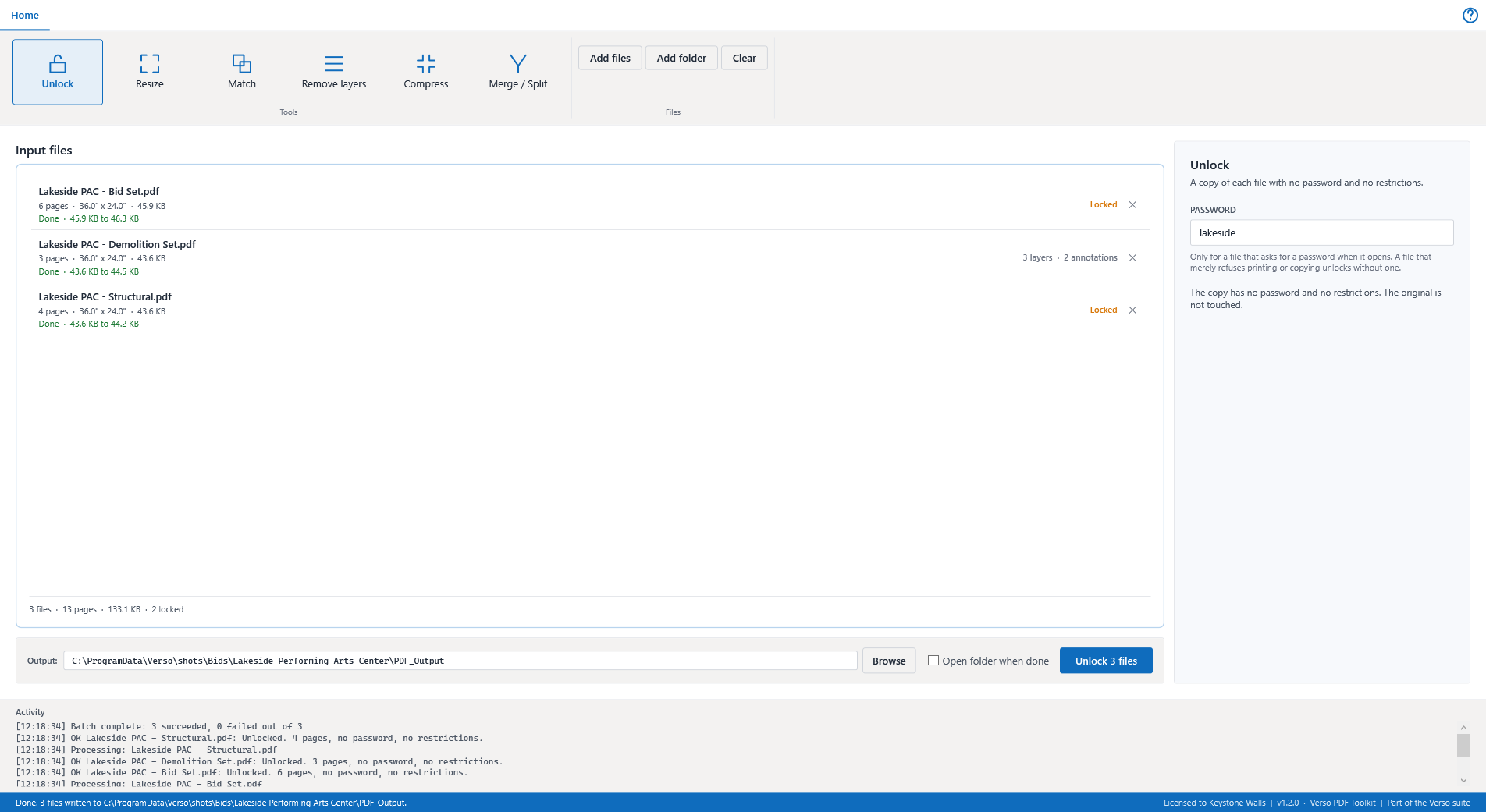
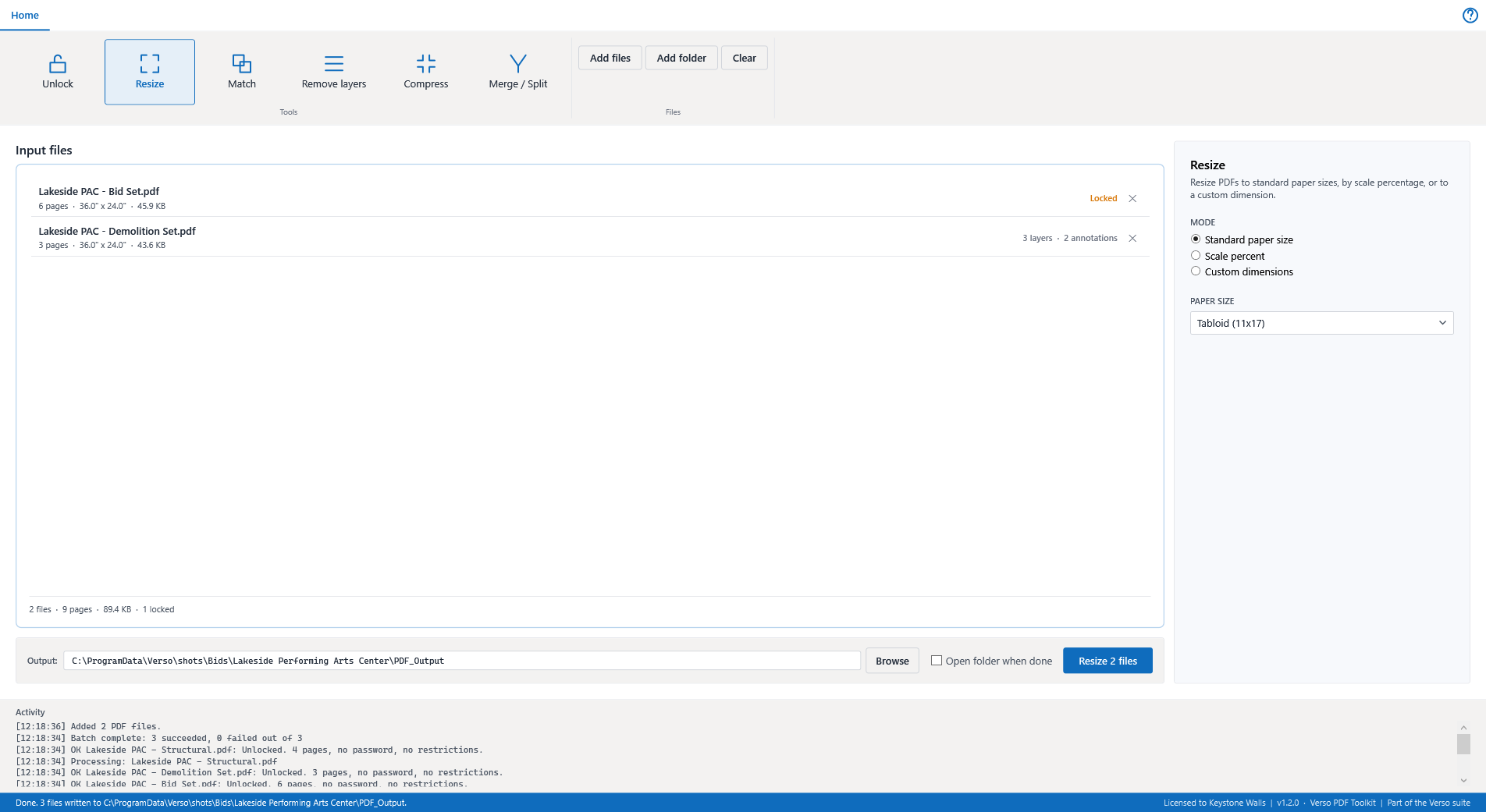
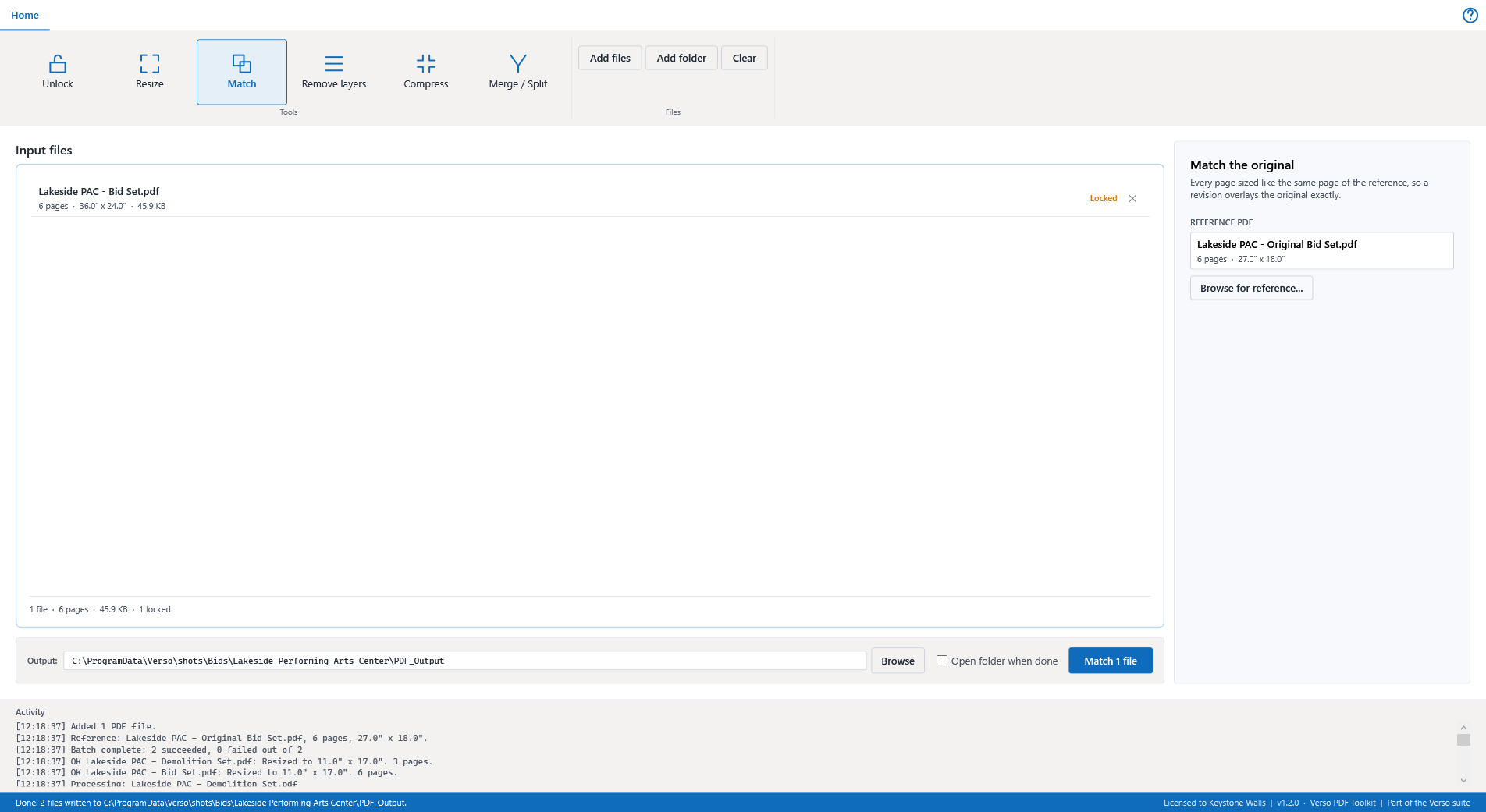
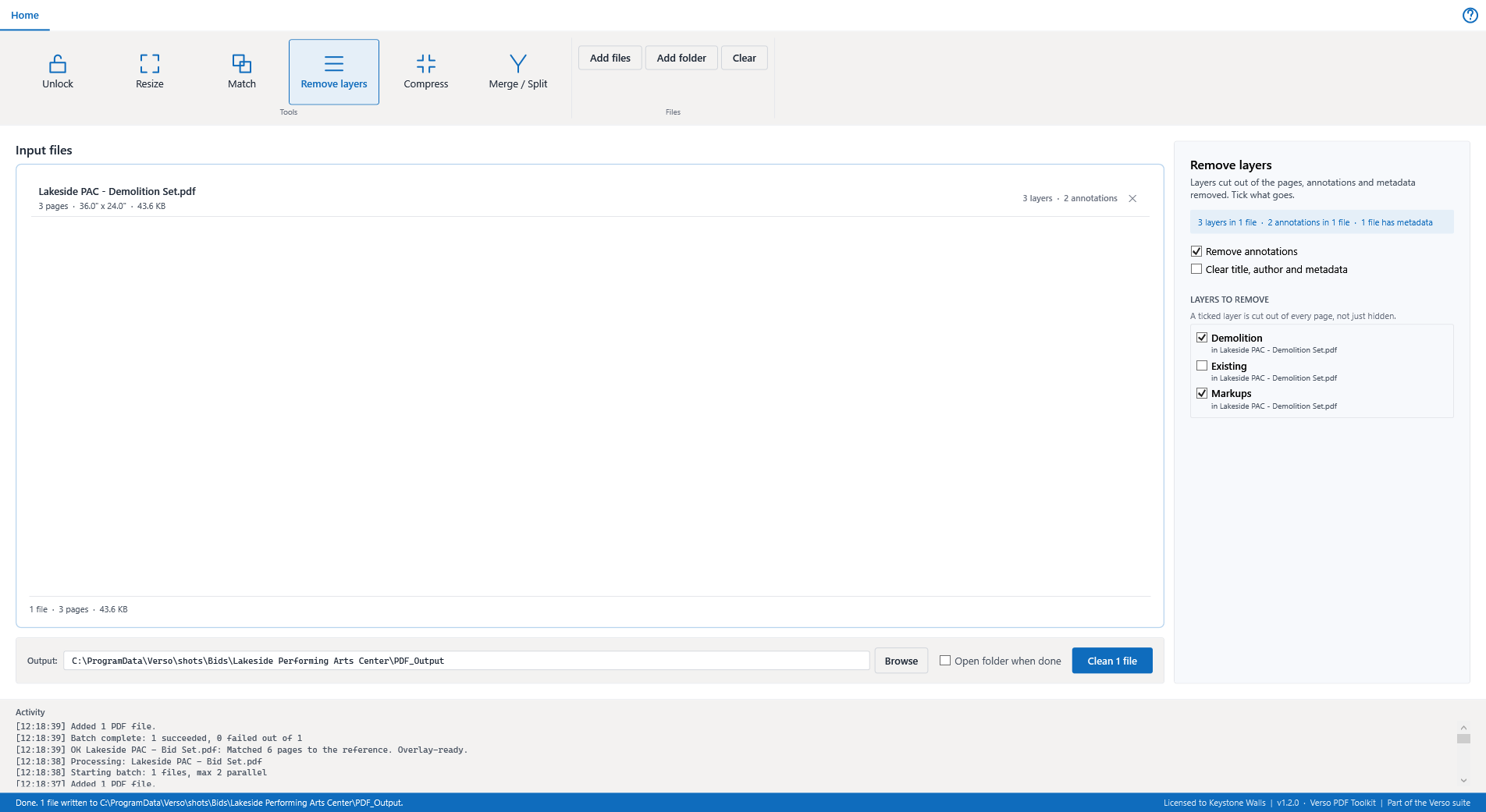
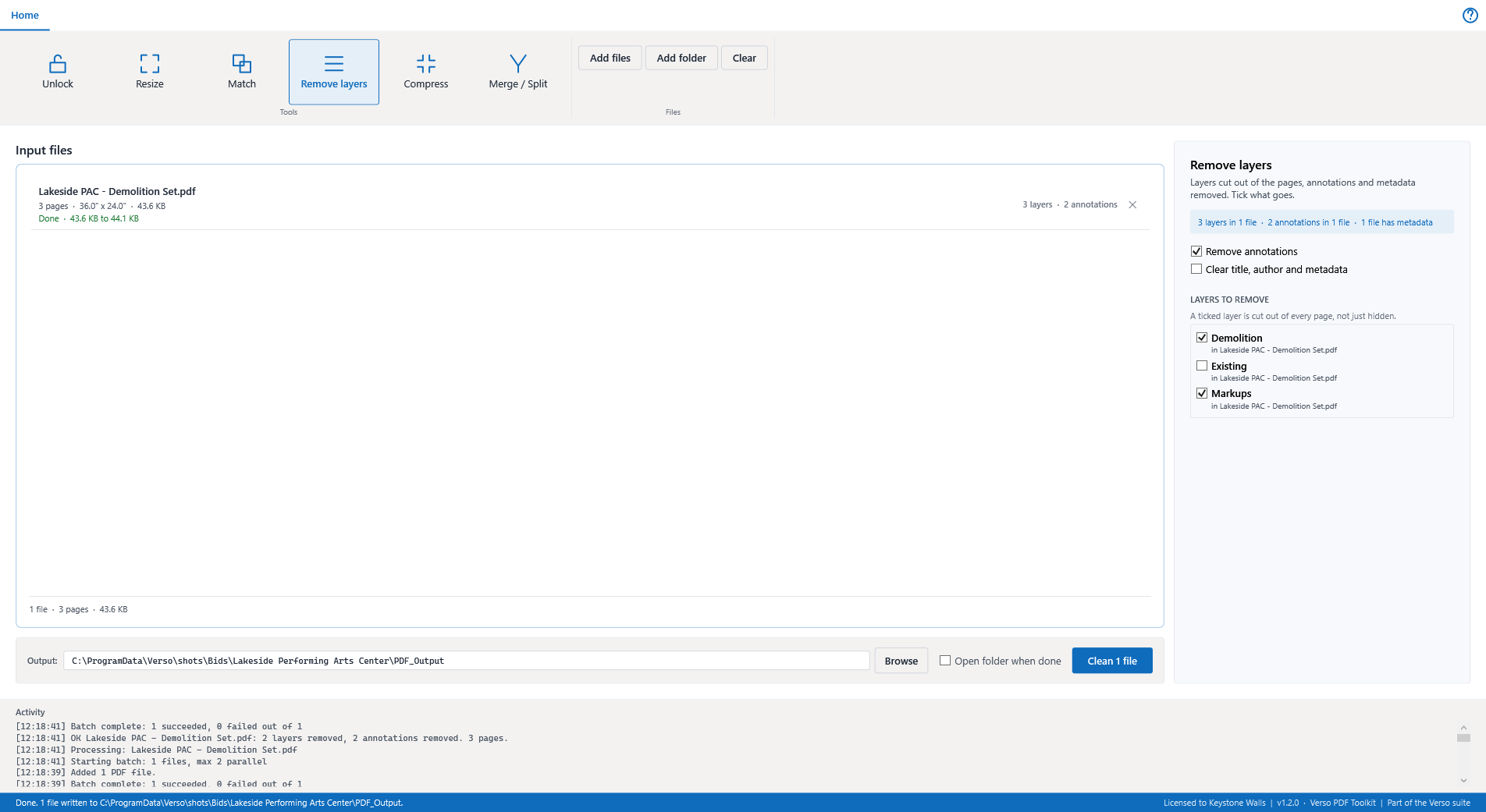
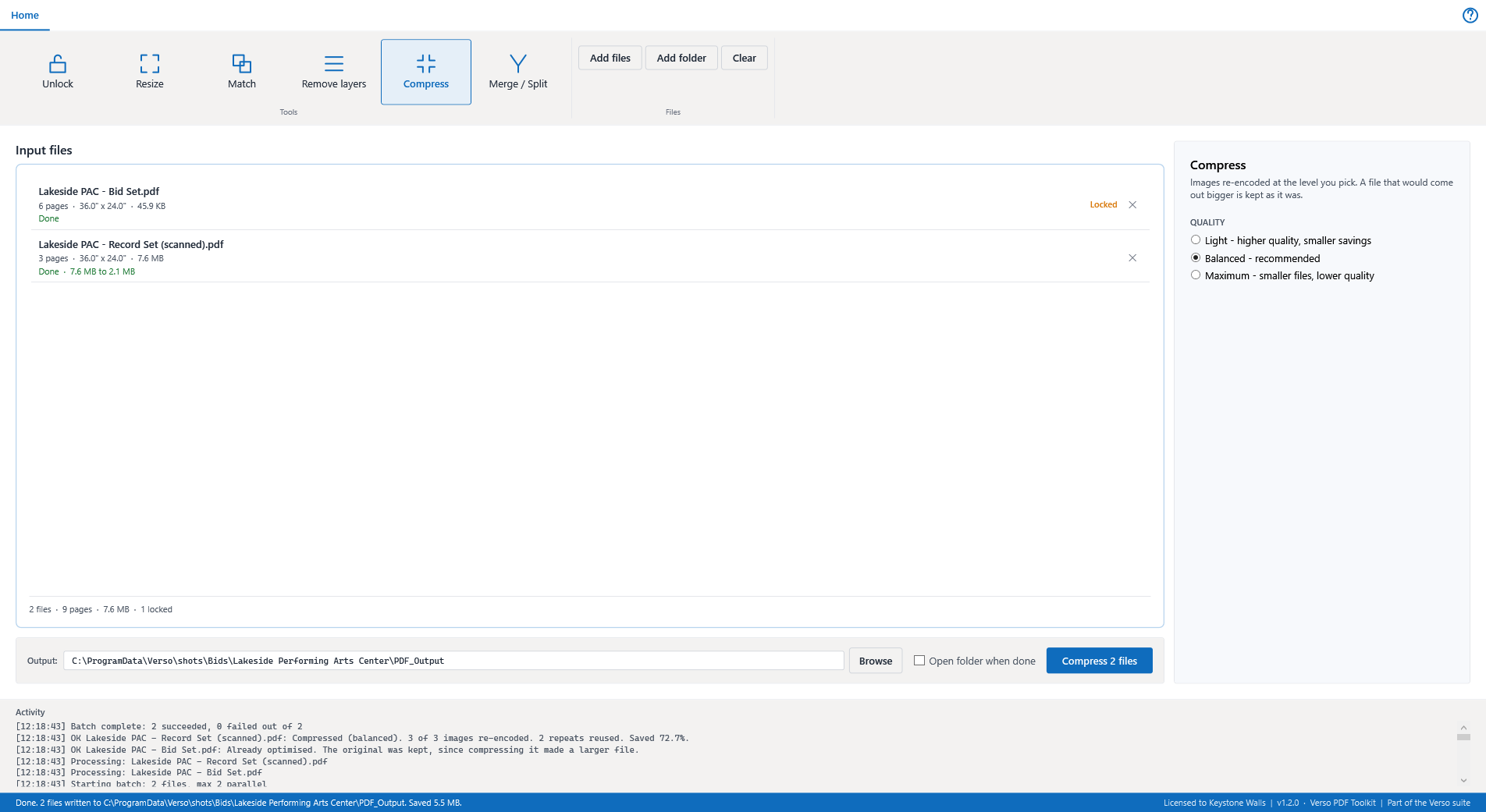
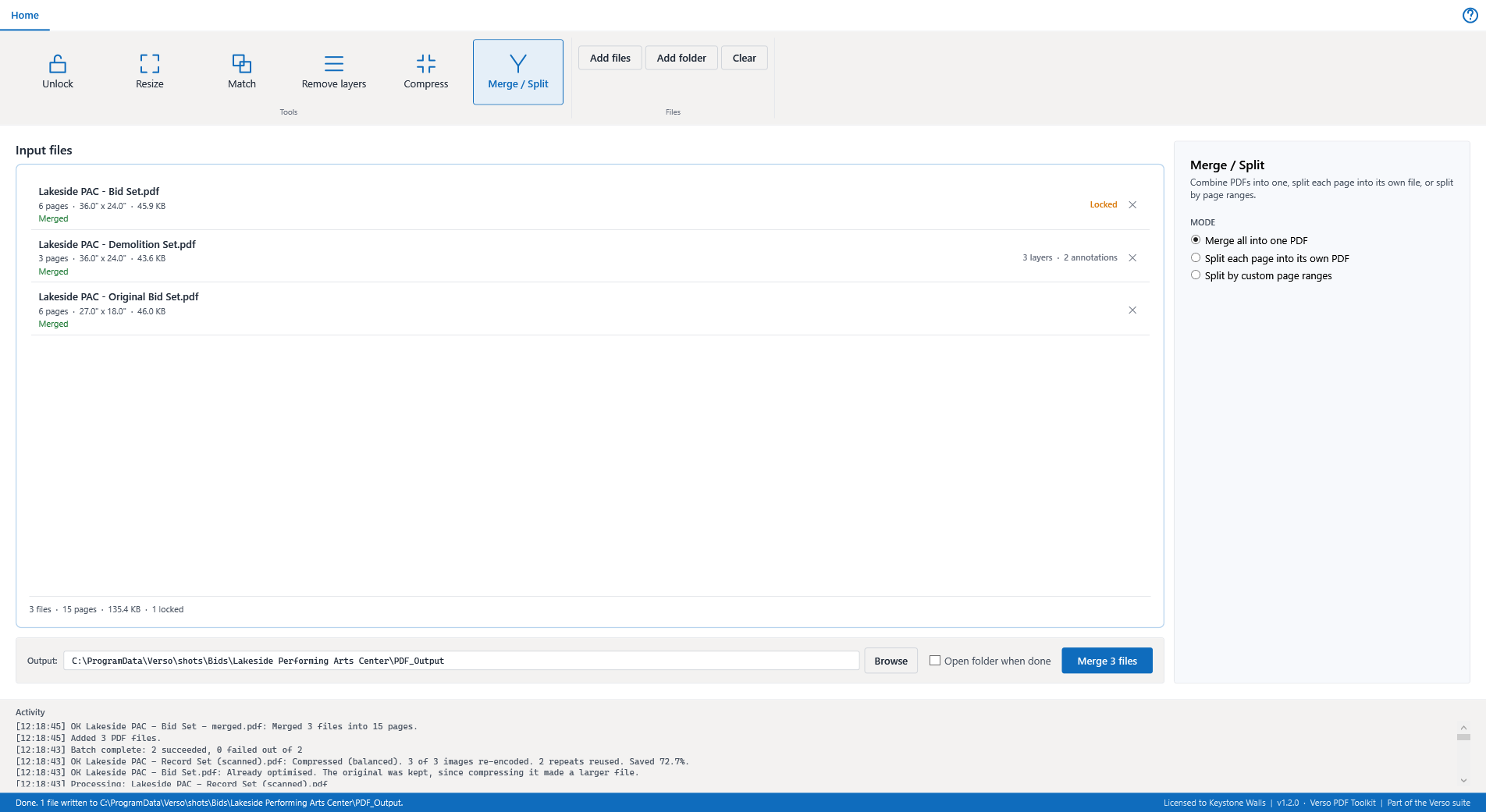
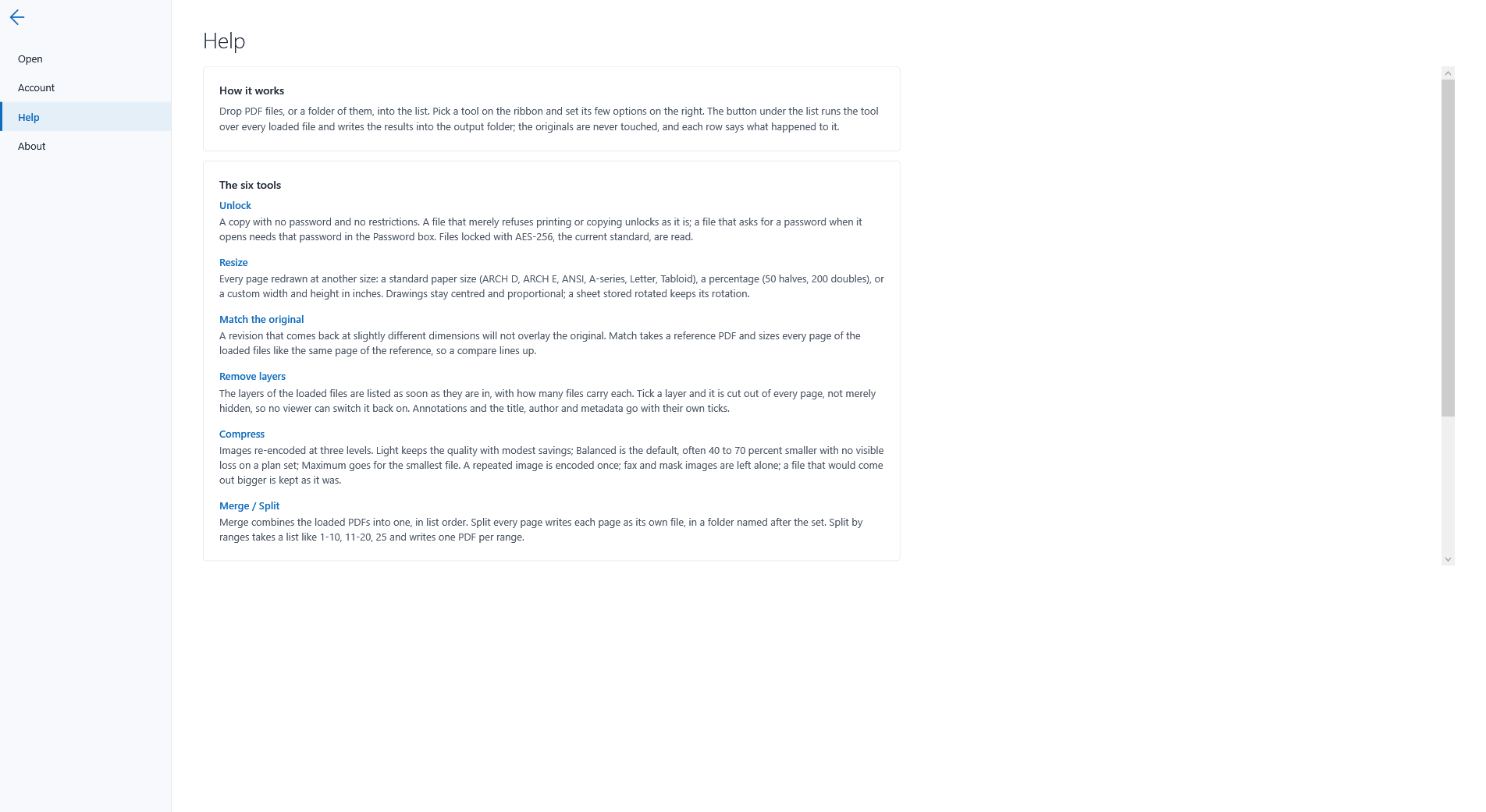
Every window above is the demo job, Lakeside Performing Arts Center, with invented people and contractors. The full description is on its page at deselt.com.
HELP
Running a tool
- Drop PDF files or a folder into the list, or use Add files and Add folder on the ribbon (Ctrl+O, Ctrl+Shift+O). Each row shows pages, sheet size and bytes, and whether the file is locked, layered or annotated.
- Pick a tool on the ribbon and set its options on the right.
- Run with the button under the list, or F5. The results go into the output folder; the originals are never touched, and each row says what happened to it. Esc cancels a long run.
Unlock
A copy of each file with no password and no restrictions. A file that merely refuses printing, copying or markup unlocks without a password. A file that asks for a password when it opens needs that password in the Password box; once typed, its row fills in. The copy keeps the pages, the layers and the bookmarks of the original.
Resize and Match
Resize redraws every page at the size you pick: a standard sheet, a percentage, or custom inches. Drawings stay centred and proportional; a sheet stored rotated keeps its rotation. Match does the same with a reference PDF as the size: every page of the loaded files takes the size of the same page of the reference, the last reference page serving the pages beyond it. Drop the original on the reference box or browse for it.
Remove layers
The layers of the loaded files are listed as soon as they are in, with how many files carry each. A ticked layer is cut out of every page's content and dropped from the file's layer list, so no viewer can switch it back on; an image or form tagged with the layer is no longer drawn. Remove annotations takes every comment, stamp and form widget off the pages; Clear metadata empties the title, author and keywords.
Compress
Images are re-encoded as JPEG at the level you pick: Light, Balanced or Maximum. A repeated image, the logo on every sheet, is encoded once. Fax-encoded drawings, soft masks and images with transparency are left alone, because re-encoding them costs more than it saves. A file that would come out bigger, usually one already optimised, is kept as it was and the row says so.
Merge and split
Merge combines the loaded PDFs into one, in list order, named after the first. Split every page writes each page as its own file into a folder named after the set. Split by ranges takes a list like 1-10, 11-20, 25 and writes one PDF per range.
Requirements
Windows 10 or 11, 64-bit. A licence key from deselt.com. Verso Plans is not required.