 Verso Suite
 Verso PDF Editor
Plan sets, bid forms and markups: the estimator's PDFs, in one fast windowVerso PDF Editor in three minutes: a bid set named from its title blocks, callouts as links, search by sheet, My sheets, markup with the toolbar at the text, a printed bid form filled from the profile, a real form filled and saved, the addendum compared.
WHAT IT DOES
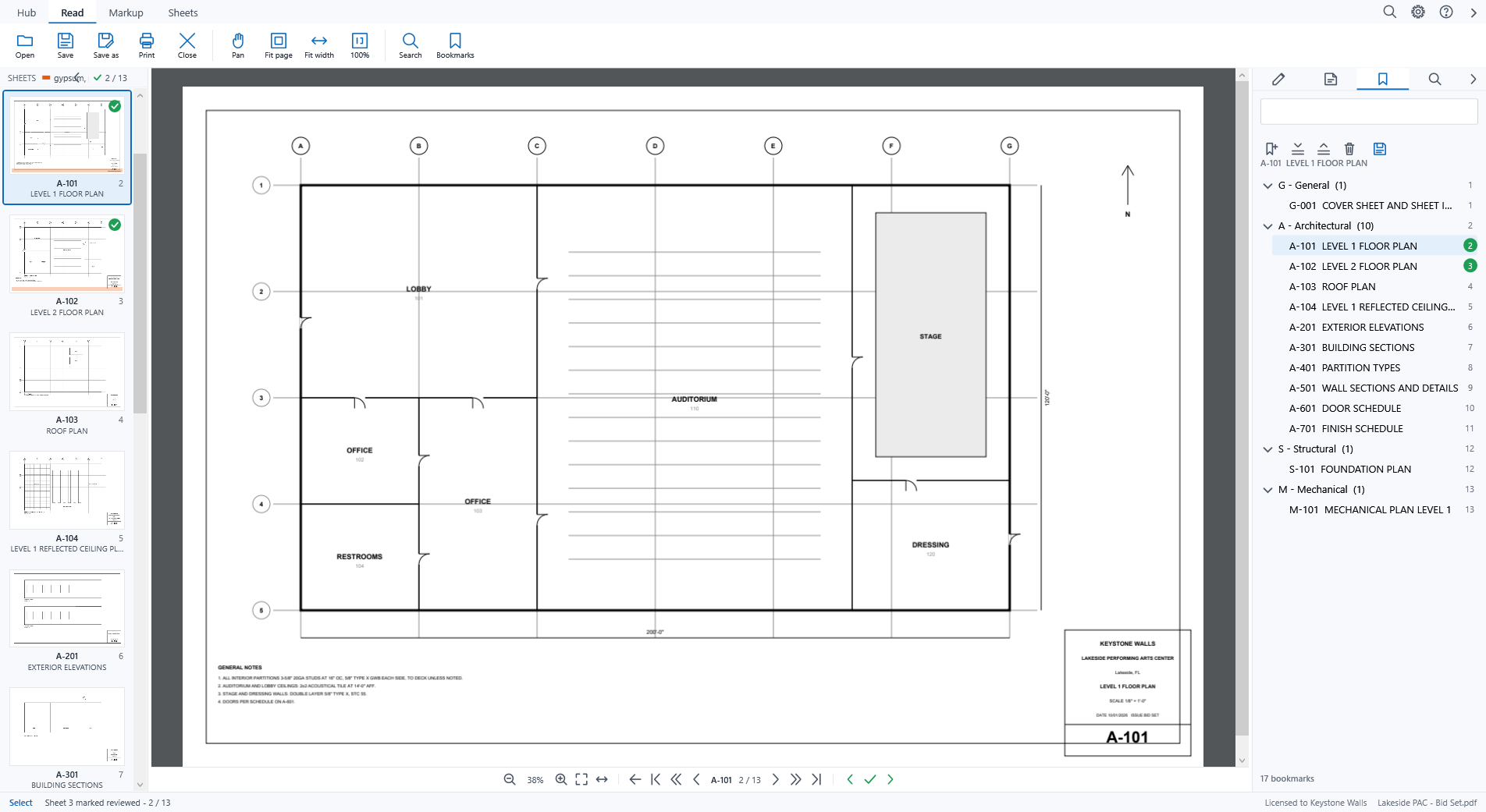
- Plan sets open in a second whatever their size; every sheet is named from its title block, grouped by discipline, with bookmarks to match.
- Detail callouts are links; Go to sheet by number; Search answers with sheet numbers; Back and Forward after a jump.
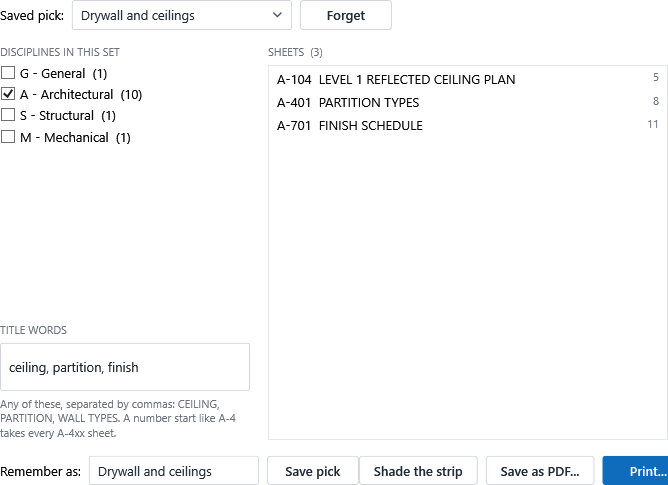
- My sheets pulls a trade's sheets out of the set by discipline and title words, prints them or saves them as one PDF; the strip shades by how much of your work is on each sheet.
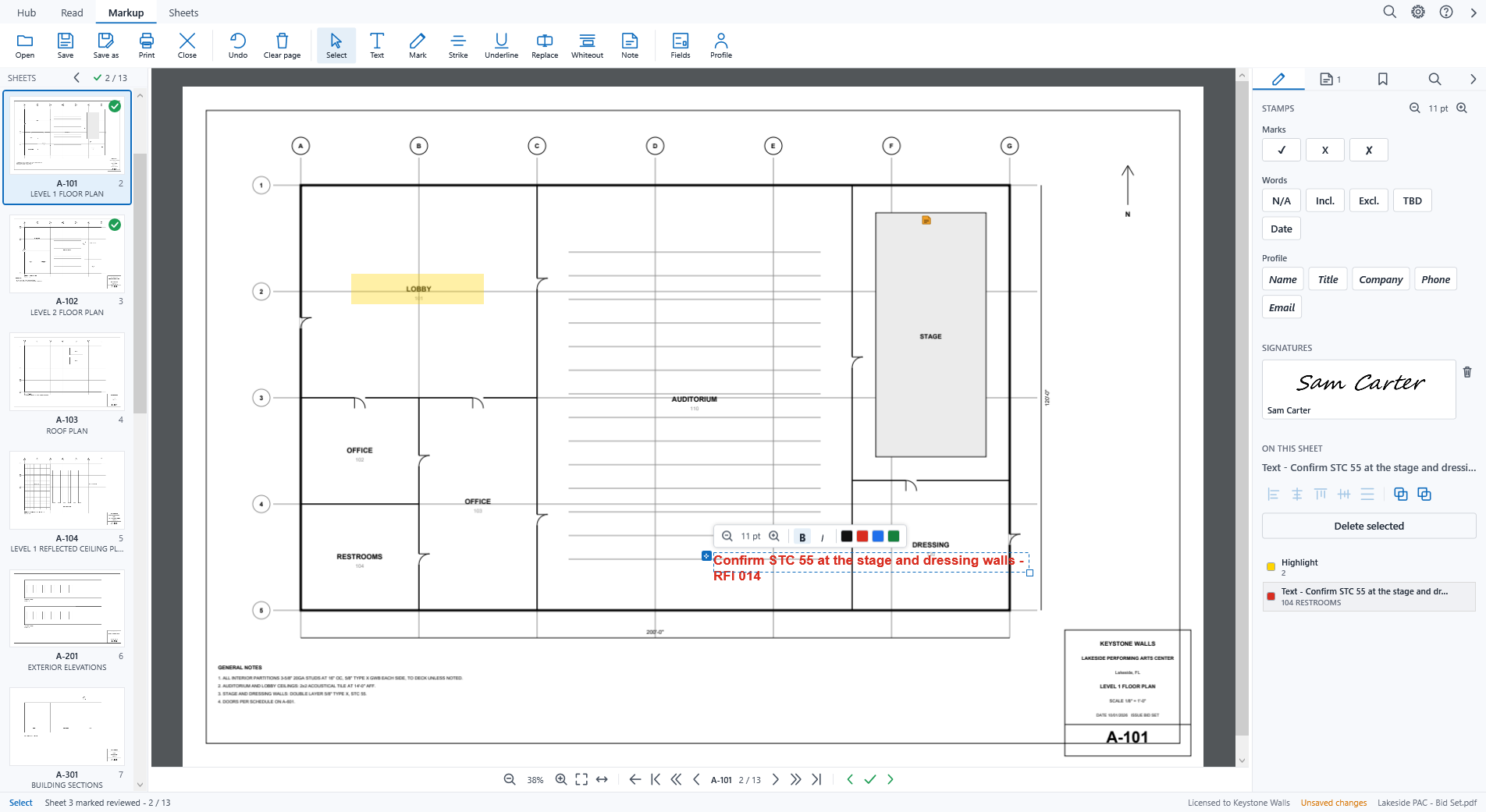
- Markup: text with a toolbar at the text, highlight, strike, underline, whiteout, replace existing text, stamps and your profile's values, signatures, notes that stay comments.
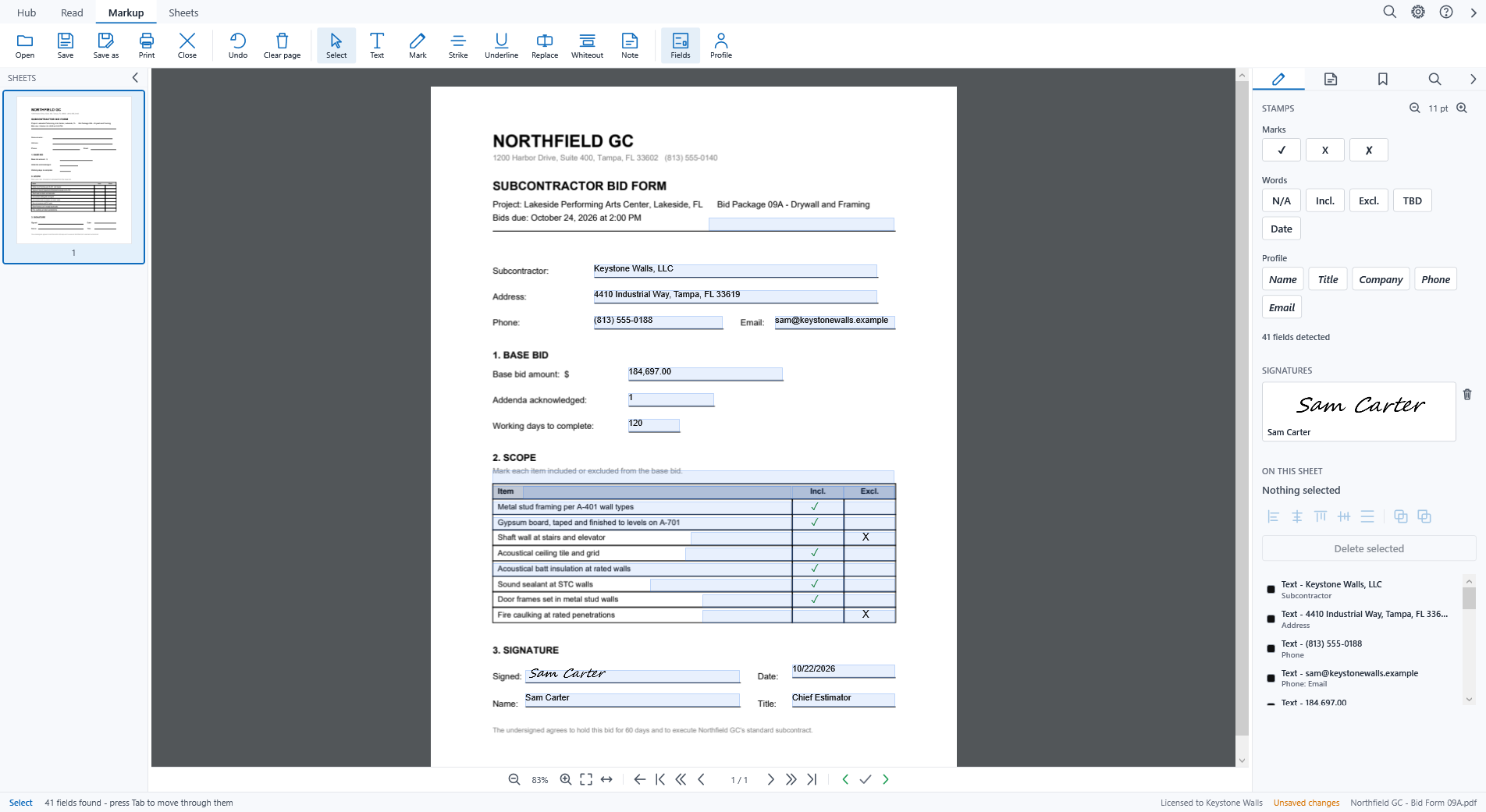
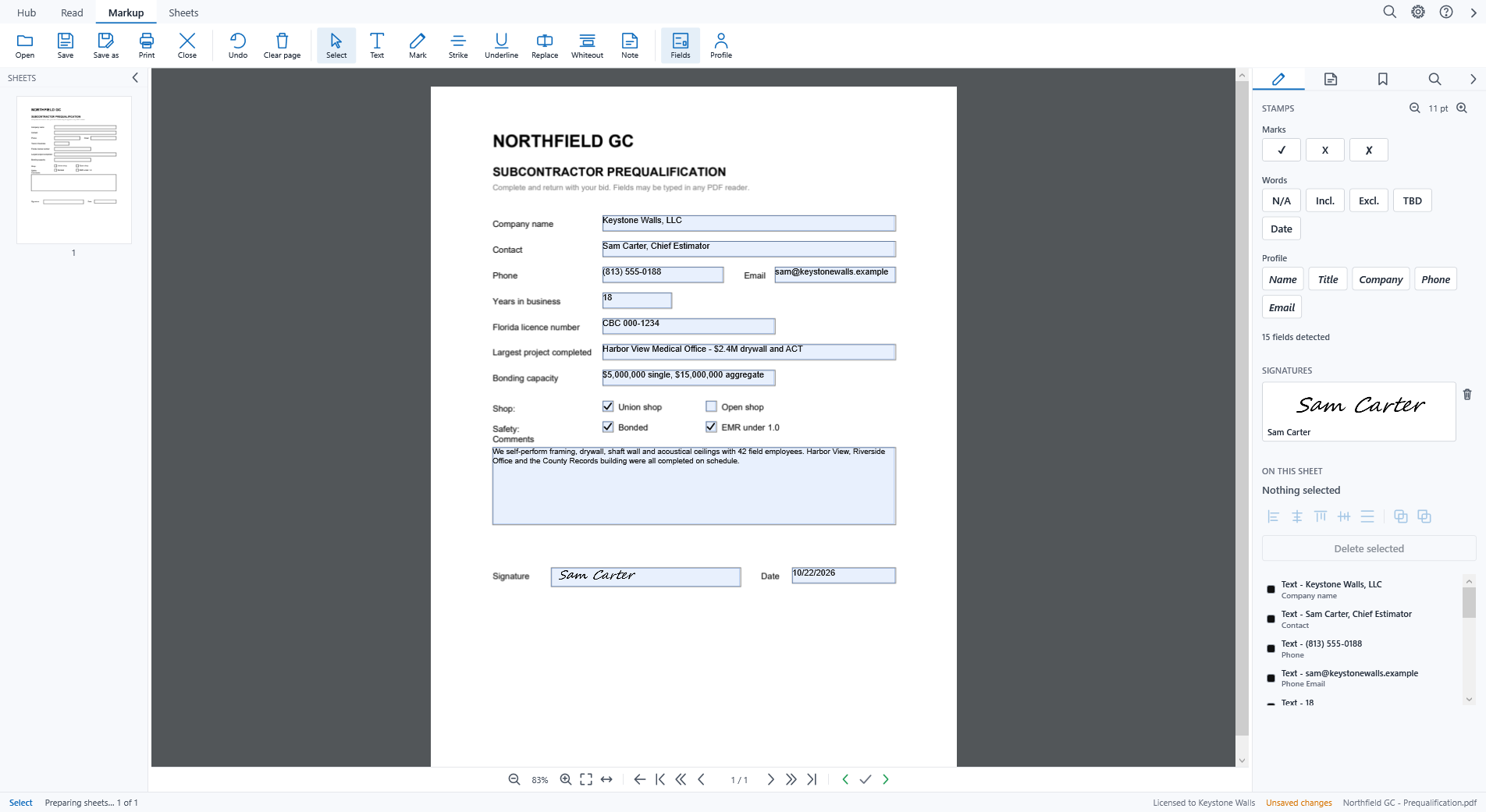
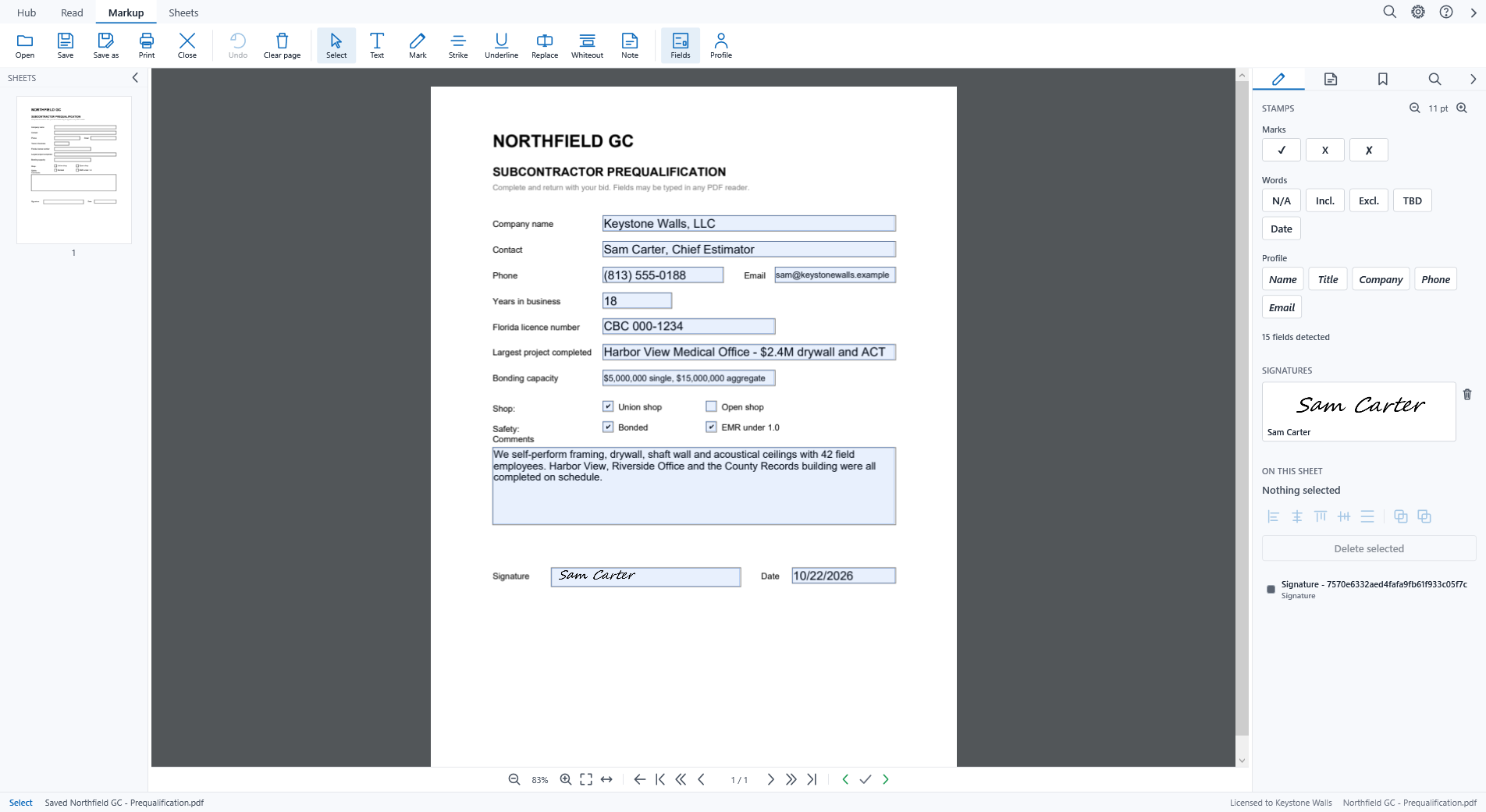
- Bid forms: Find fields finds the blanks on a printed form and Tab moves through them; a form with real fields opens ready to fill, and Save writes the values into the fields.
- Save writes your marks into the PDF as annotations Acrobat lists and this editor reads back; Save as makes a copy, editable or flattened for sending out.
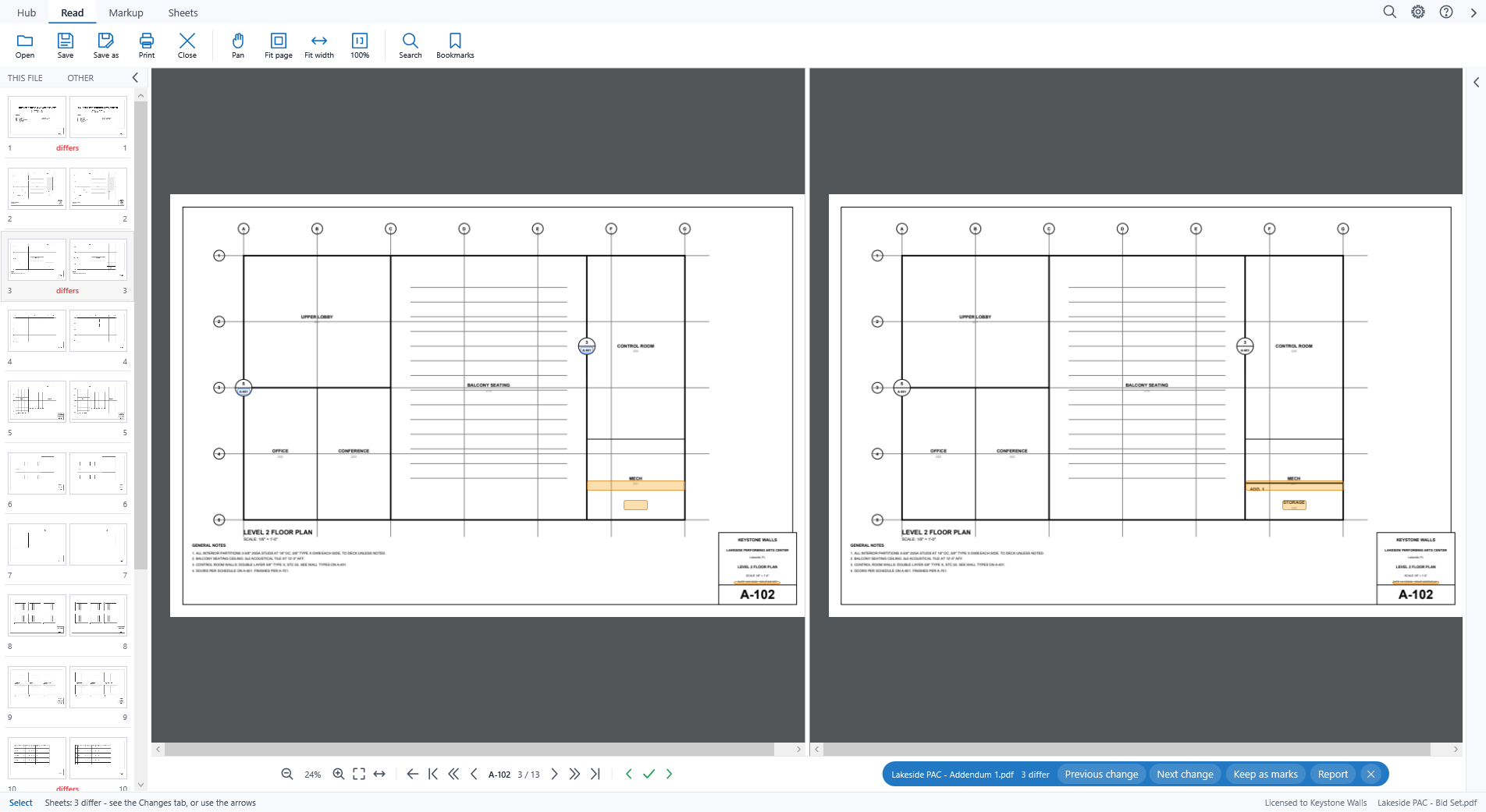
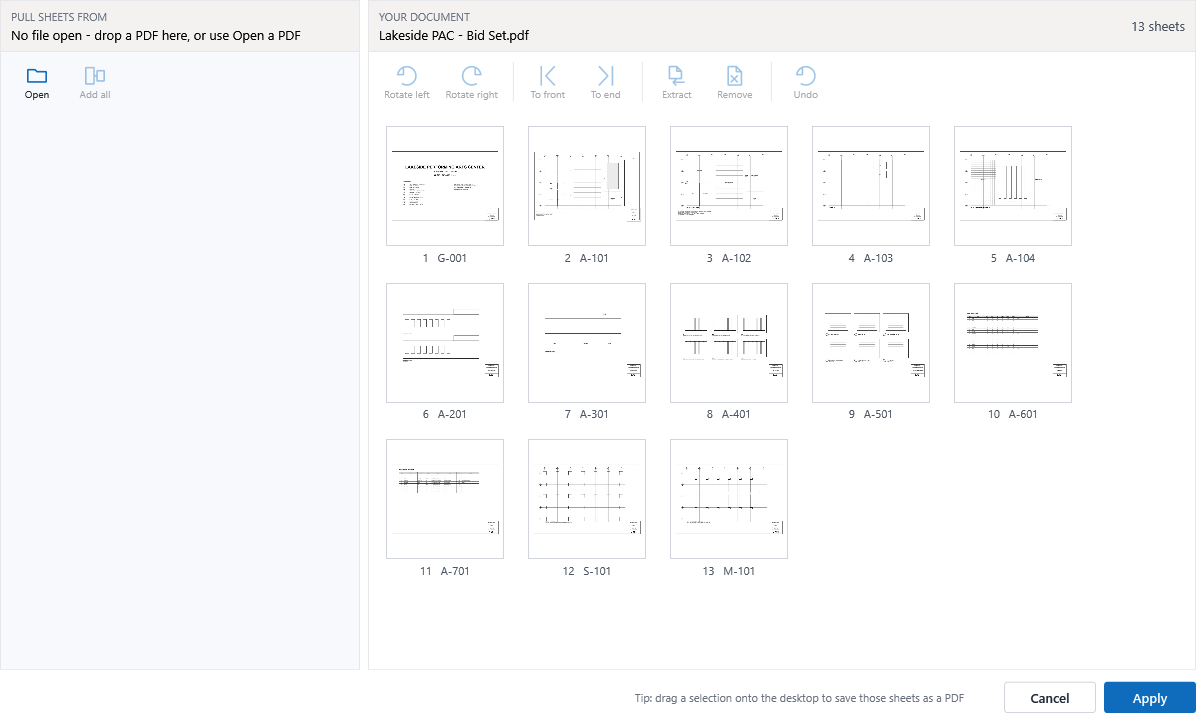
- Compare a revision against the bid set sheet by sheet; Organise reorders, rotates, removes and merges sheets; read scanned sheets so they can be searched.
WHO IT IS FOR
- Everyone on the bid: the estimator with the set, the office with the forms, the project manager with the addendum.
- Windows desktop, bought once; the 30-day trial needs no card. Works on its own, and as the PDF opener beside Verso Plans.
SCREENSHOTS
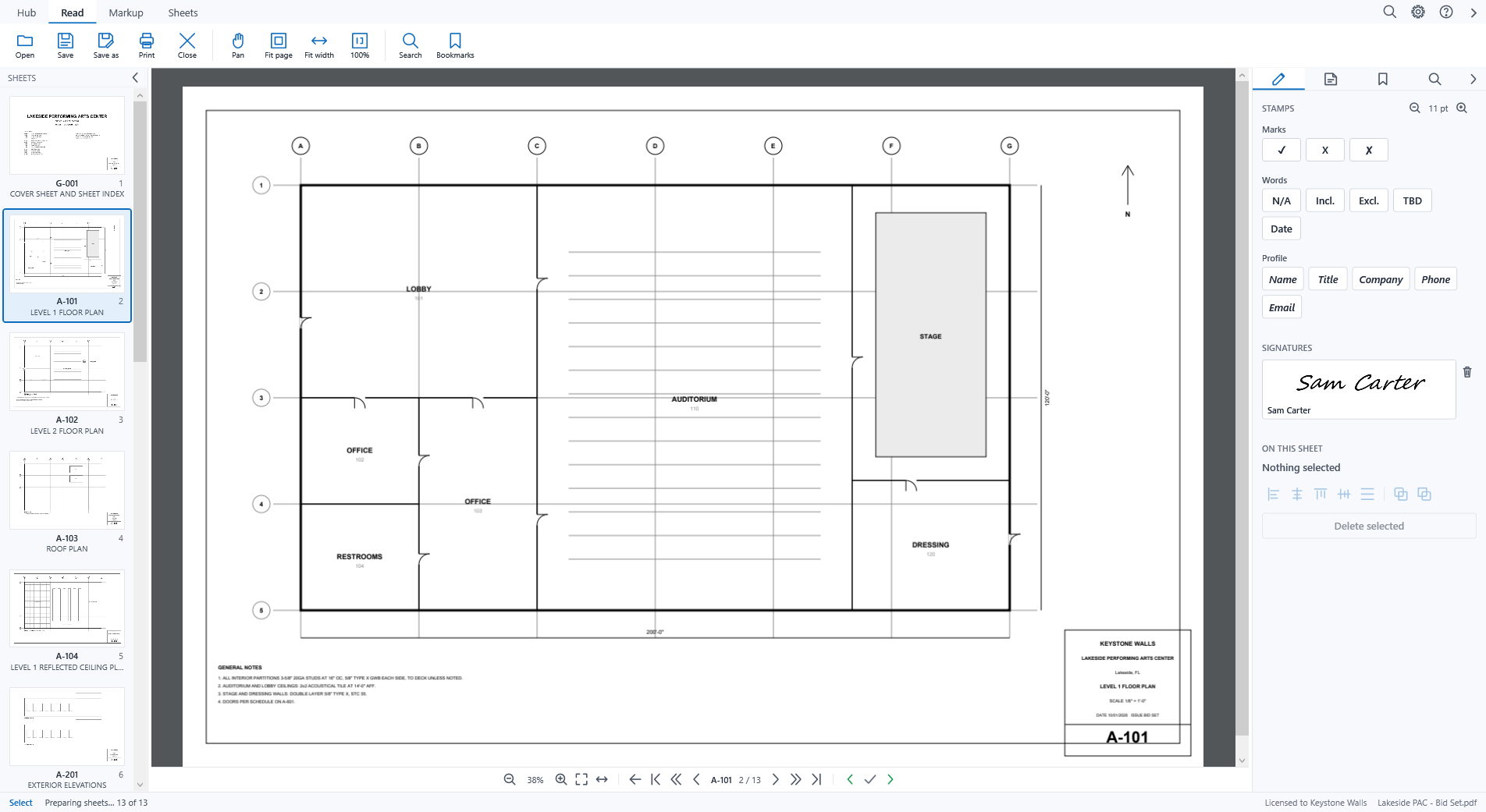
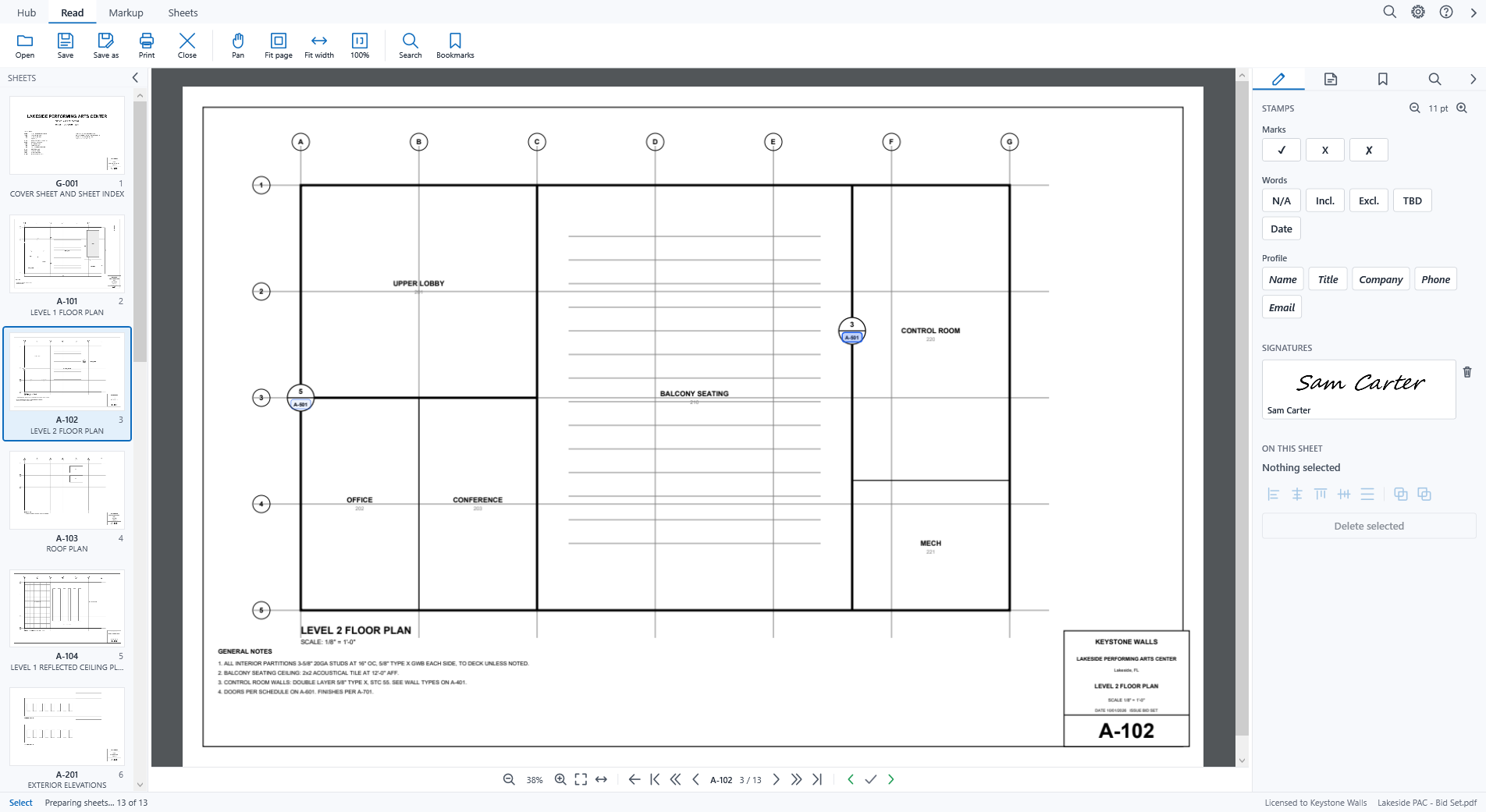
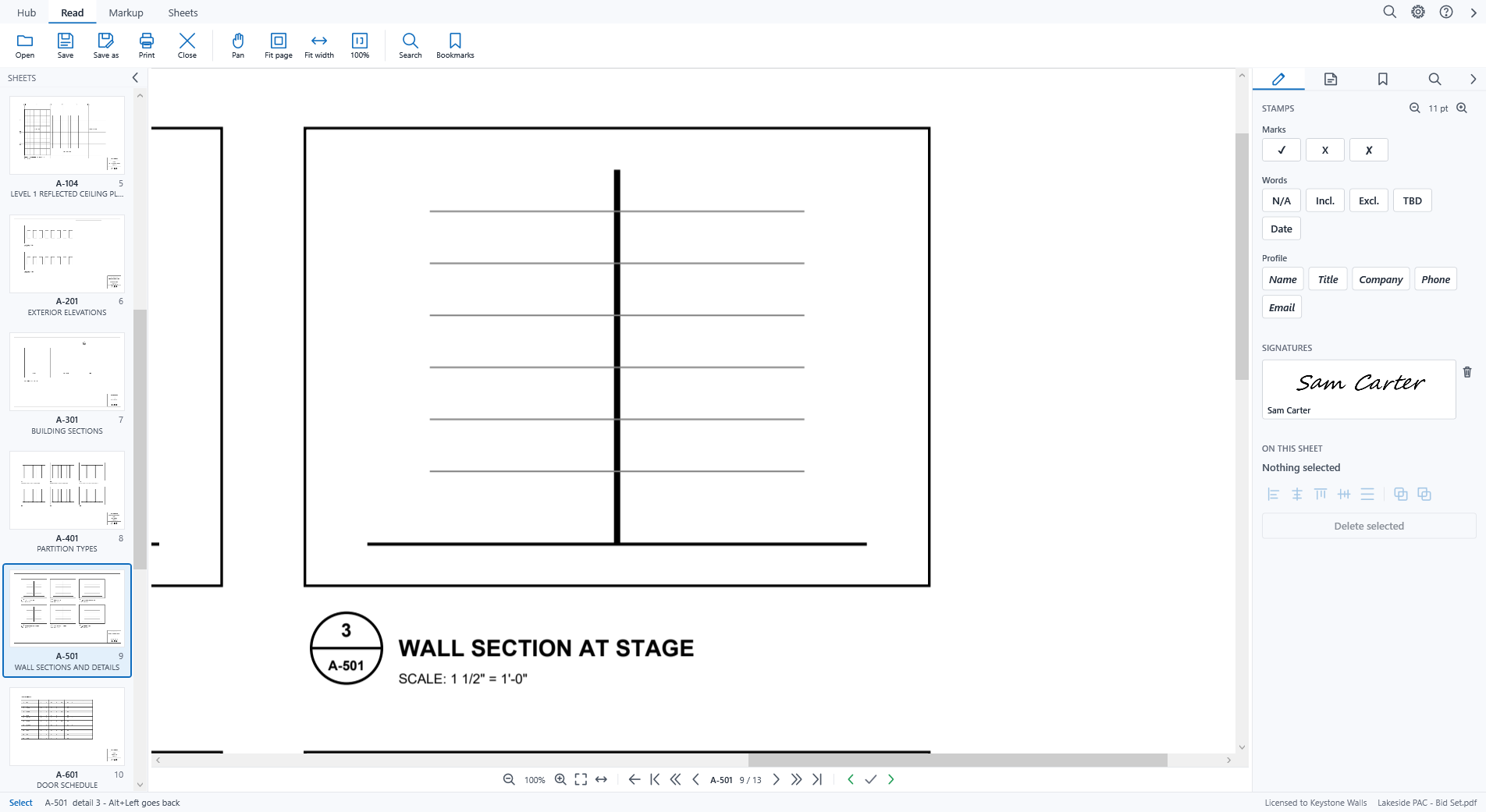
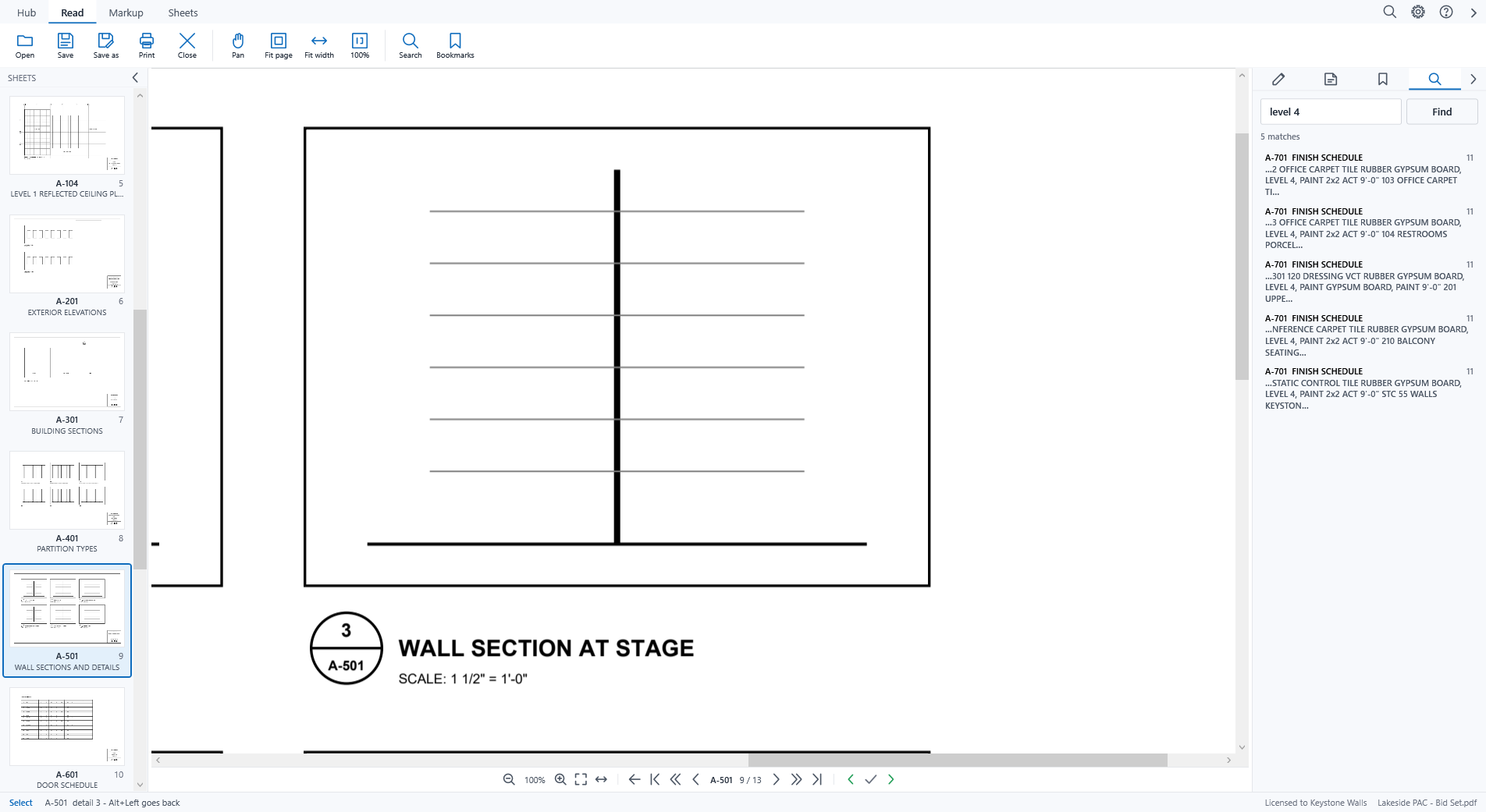
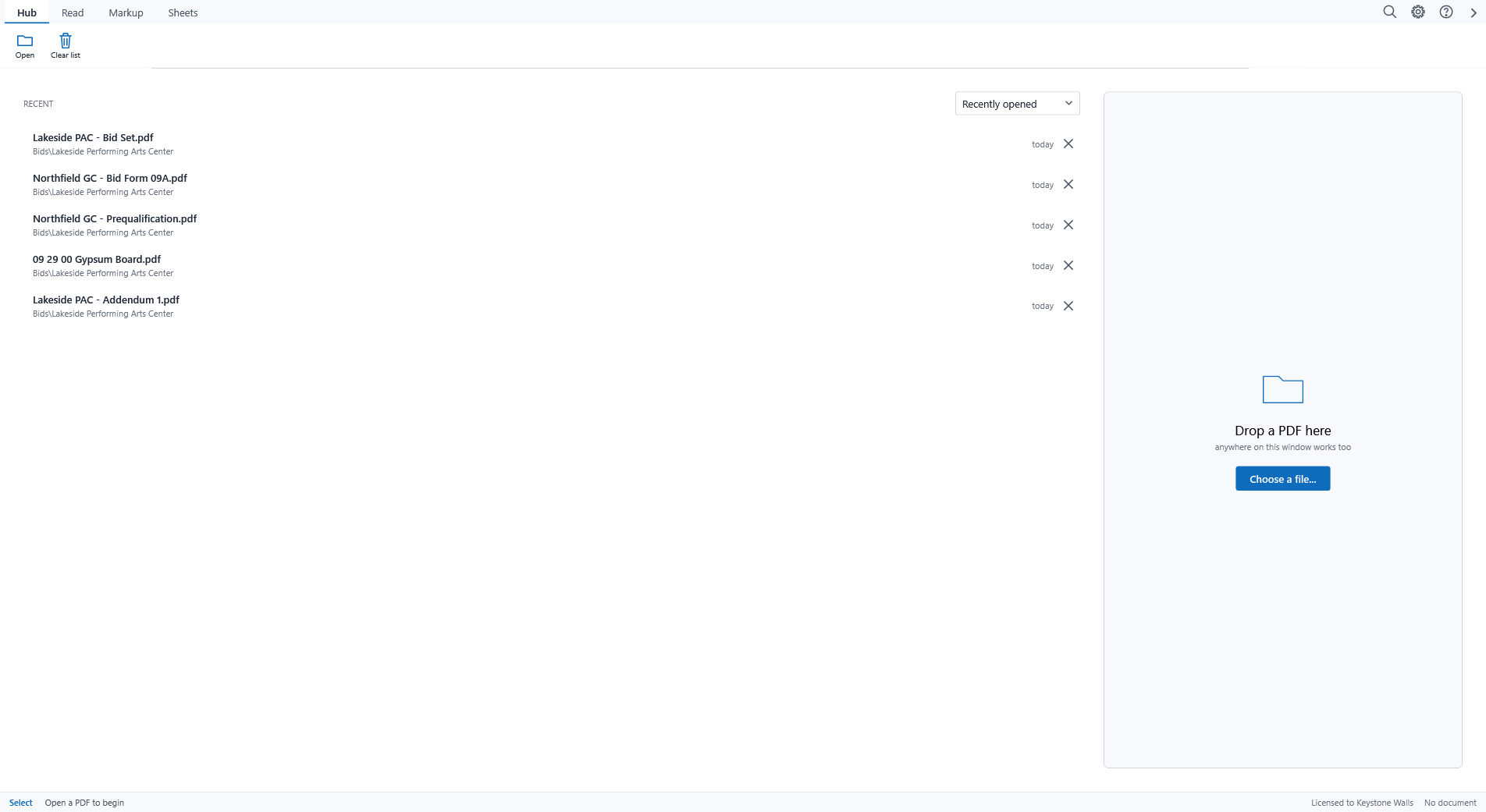
Every window above is the demo job, Lakeside Performing Arts Center, with invented people and contractors. The full description is on its page at deselt.com.
HELP
A bid set
- Open the set, or drop it on the window. The sheets are named from their title blocks as you read; the Bookmarks tab groups them by discipline.
- Go to sheet: Ctrl+G or click the sheet label, type a502 and press Enter. Click a detail callout to land on that detail at full size; Alt+Left comes back.
- Mark a sheet reviewed with Ctrl+R; Alt+Up and Alt+Down step between reviewed sheets, Alt+N goes to the next one not yet reviewed.
- My sheets on the Sheets tab: tick your discipline, type title words, and print those sheets or save them as one PDF. Shade the strip colours the thumbnails by how often your words appear on each sheet.
Bid forms
A printed form has no fields. Fields on the Markup tab finds the blanks - underscores, rules, table cells - and Tab moves through them; the value lands on the line. Stamps put a tick, an X, N/A or Incl. down with one click; the Profile buttons drop your name, company, phone and e-mail in; a signature from the Profile drops in at its natural size.
A form with real fields opens with its fields ready: click a field with any tool to type into it, click a box to tick it, Tab moves through the text fields. Save writes the values into the fields, so Acrobat shows a filled form.
Save, Save as, Print
Save (Ctrl+S) writes the PDF in place: form fields filled, every other mark a real annotation that Acrobat lists as a comment and this editor reads back as a mark you can still move. Save as (Ctrl+Shift+S) writes a copy under another name; the file type list chooses marks editable or marks flattened into the page for sending out. Print flattens the same way, so the printed copy matches the one you send. Marks also autosave on every edit, so a crash costs nothing.
Markup
Text, highlight, strike, underline, whiteout and replace are on the Markup tab. Double-click anywhere on a page to start typing; a small toolbar over the text has size, bold, italic and colour. A note is pinned with one click and stays a comment, signed with your name, in whoever's reader opens the file next. The right panel has the stamps, the signatures and what is on this sheet, always open.
Compare and Organise
Compare on the Sheets tab puts another revision beside this one, sheet by sheet, says which sheets differ, and marks the changes; Keep as marks turns them into highlights, Report writes the comparison out. Organise reorders, rotates, removes and merges sheets, with the sheet numbers to go by; drag a selection onto the desktop and those sheets become a PDF.
Scanned sheets
A sheet that is a picture of a page says so in the status bar. Read text reads the words and their positions with Windows' own recognition, nothing leaves the machine; after that Search, Fields and Replace work on it, and Save writes the words into the file invisibly so the sheet is searchable in any reader.
Requirements
Windows 10 or 11, 64-bit. A licence key from deselt.com, or the 30-day trial. Verso Plans is not required.